


A store owner I worked with last year had 340 products across 12 categories. She was running storewide 15% off sales every few weeks. Revenue spiked during sales, but margins were shrinking — she was discounting her bestselling electronics (8% margin) at the same rate as her accessories (62% margin). Every sale cost her money on the high-ticket items while barely moving the slow categories.
The fix was obvious in hindsight: stop discounting everything and start discounting by category. She switched to a 20% discount on accessories only, ran it for two weeks, and moved $4,200 in slow-moving inventory without touching her electronics margins. Average order value went up too — customers adding discounted accessories to their electronics orders.
WooCommerce lets you create coupons restricted to categories, but the built-in tools are limited. You can’t auto-apply discounts, set up tiered pricing per category, or combine categories with conditions like user roles or cart minimums. For that, you need a plugin.
What Is a WooCommerce Category Discount?
A category discount applies a price reduction to every product inside a specific WooCommerce product category — instead of discounting individual products one by one or running a storewide sale.
Think of it like a department store putting all winter coats on sale. You mark the entire “Winter Coats” section as 30% off. Every coat gets the discount automatically — no individual tagging needed.
WooCommerce’s built-in coupons can restrict to categories, but they require customers to enter a code manually. There’s no auto-apply, no tiered pricing, and no conditional logic.
Average eCommerce discount rates range from 10% to 30% depending on category (Opensend, 2025). Fashion runs 30-40%, luxury stays under 15%. Knowing your category’s benchmark helps you set discounts that feel competitive without destroying margins.
If you’re new to WooCommerce promotions, our overview of how WooCommerce points and rewards work explains how discounts fit into a broader retention strategy.
Why Category Discounts Beat Storewide Sales
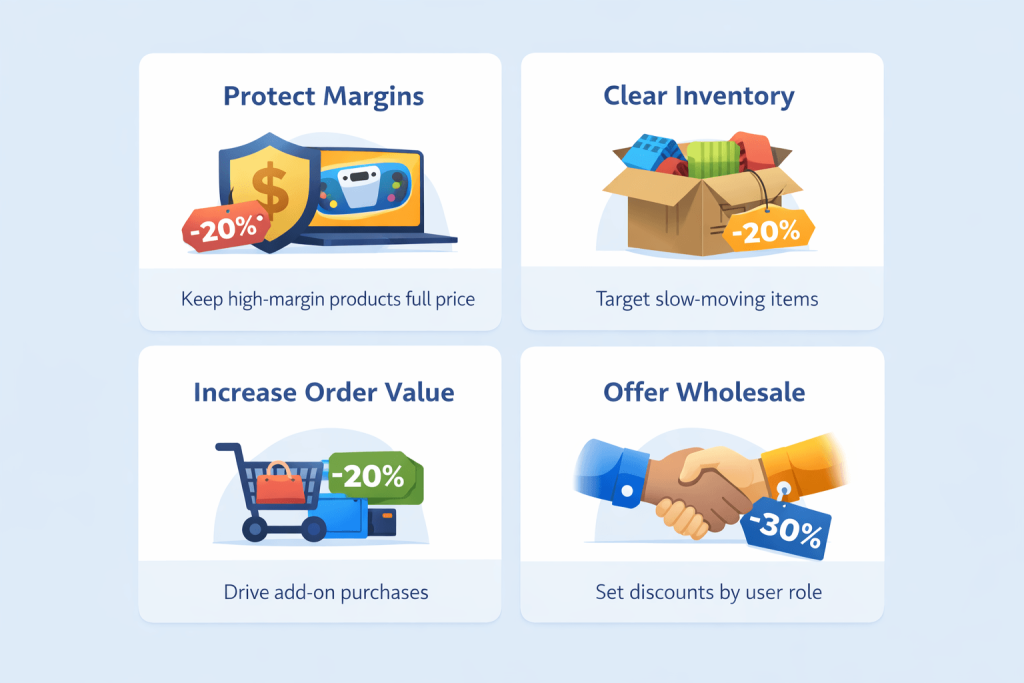
You protect high-margin products. A storewide 20% off sale discounts everything — including items at thin margins. Category discounts let you choose where the discount applies, keeping profitable items untouched.
You move specific inventory. Got 200 units of last season’s scarves? A category discount on “Scarves” clears them without discounting current-season jackets.
You increase average order value. When customers see “20% off all Accessories,” they add accessories to their full-price electronics order.
You can run permanent wholesale pricing. Category discounts with user role conditions give wholesale customers automatic pricing on specific product lines — without changing the retail price everyone else sees.
93% of consumers say they’re more likely to buy from a retailer offering category-specific deals (WooCommerce/Statista, 2025). And 70% admit discounts push them to buy products they hadn’t planned on purchasing (SalesSo, 2026).
Category discounts are especially powerful when paired with a customer loyalty program — the discount gets the customer in the door, the loyalty points keep them coming back.
Related Read: How to Set Up WooCommerce Gamification.
Extend the impact of your category discounts with WPLoyalty.
WooCommerce Default Category Discount
Before installing any plugin, you should know what WooCommerce can do natively. The built-in coupon system does support category-based discounts — with limitations.
Here’s how to create one using default WooCommerce:
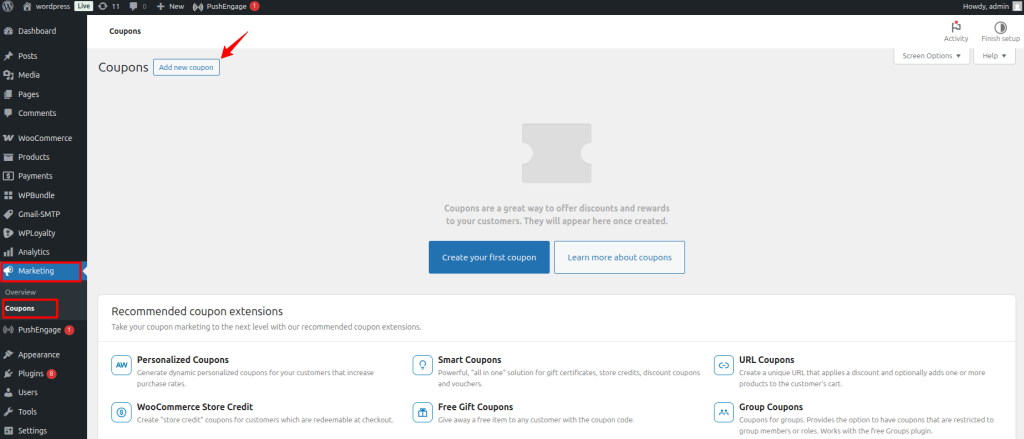
Go to Marketing → Coupons → Add Coupon. Enter a coupon code (e.g., “APPAREL20”) and add an optional description.
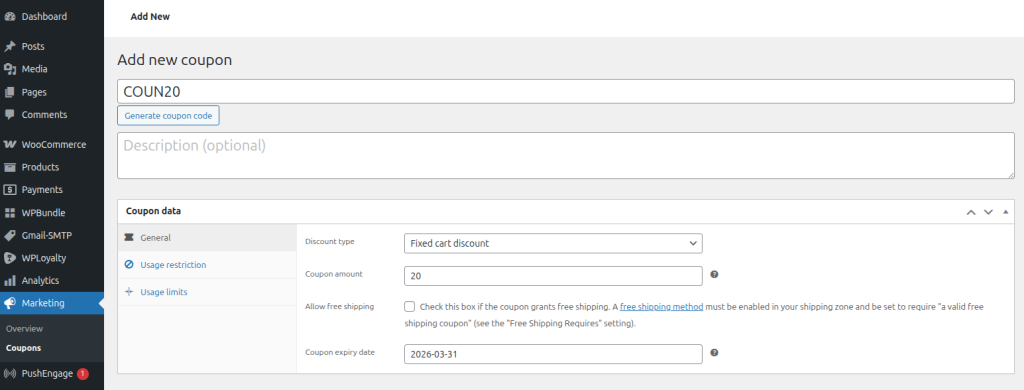
General tab:
- Discount type: Choose “Percentage discount” or “Fixed cart discount”
- Coupon amount: Enter the value (e.g., 20 for 20% off)
- Coupon expiry date: Set a deadline so it doesn’t run forever
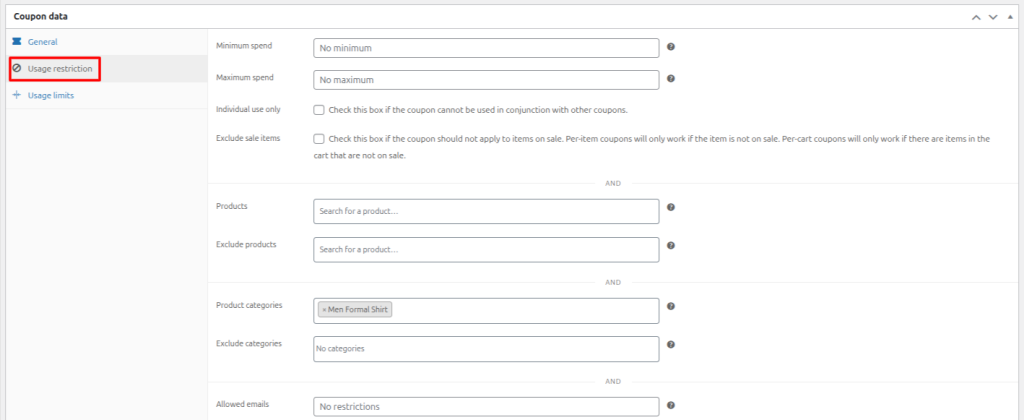
Usage Restrictions tab:
- Scroll down to the “Product categories” field
- Search for and select the category you want to discount (e.g., “Apparel”)
- To exclude certain categories from the discount, use the “Exclude categories” field below it.
Usage Limits tab:
- Usage limit per coupon: Set a total cap (e.g., 500 uses)
- Usage limit per user: Set to 1 if you want each customer to use it only once
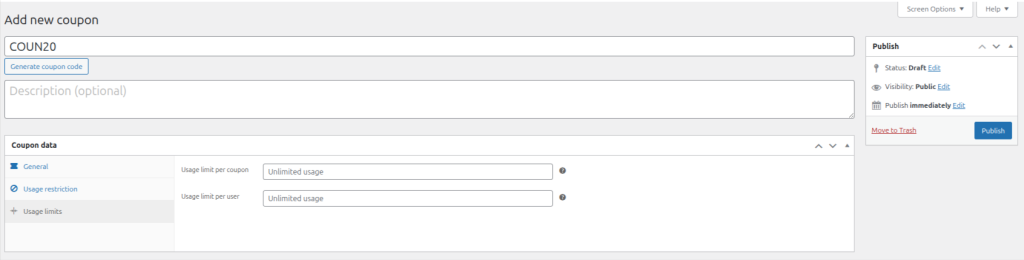
Click Publish. The coupon is now active. Customers enter “COUN20” at checkout and the discount applies only to products in the Apparel category.
Where this method falls short:
- No auto-apply
- No tiered pricing
- No user role conditions
- No category combination logic
- No on-page price display
Bottom line: Default WooCommerce coupons work for a simple, code-based category discount. For anything running on your storefront permanently or conditionally, it’s too limited.
Related Read: Best WooCommerce Smart Coupon Plugins.
Why I Use Discount Rules by Flycart (And Why It Matters)
Most guides on WooCommerce category discounts recommend a random plugin. I want to be upfront about why I chose Discount Rules for WooCommerce by Flycart — and why that choice connects to something bigger.
Flycart is the same company that builds WPLoyalty. That means two things for your store: the plugins are built to work together, and Flycart understands both the discount side and the retention side of eCommerce. The Discount Rule Integration add-on connects WPLoyalty loyalty levels directly with Discount Rules — so customers in Gold or Platinum tiers automatically receive level-based discounts without extra campaigns.
The plugin itself is strong on its own merits: 200,000+ active installs, 1,237+ five-star reviews on WordPress.org, and it handles category discounts in five different ways (percentage, fixed, bulk tiered, BOGO, and cross-category combinations). The free version covers basic percentage and fixed category discounts. The PRO version ($85/year) unlocks BOGO, bulk pricing, user role conditions, and scheduled deals.
“The plugin is simple and easy to understand and that is the biggest issue I find with plugins on WordPress. The Support was able to sort out my issue really really fast!” — WordPress.org reviewer
“FlyCart plugin helps my clients with online selling. The support is really helpful and fast responding.” — WordPress.org reviewer
What You’ll Need Before Starting
- WooCommerce 8.0+ installed and active
- WooCommerce coupons enabled — WooCommerce → Settings → General → confirm “Enable coupons” is checked
- Discount Rules for WooCommerce by Flycart — free version for basic category discounts, PRO ($85/year) for BOGO, bulk, and conditional category discounts
- Product categories already set up — you need at least 2 categories with products assigned. If your categories aren’t organized yet, do that first.
⏱️ Time estimate: 10-15 minutes to set up your first category discount.
How to Set Up a WooCommerce Category Discount Using Discount Rules (5 Ways)
All five methods use Discount Rules for WooCommerce.
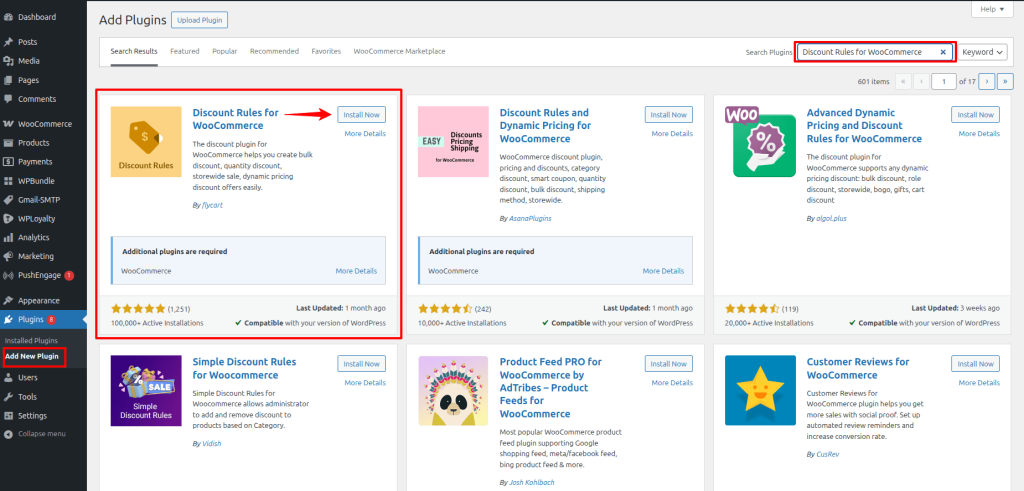
Install and activate the plugin (see Prerequisites), then follow the scenario that matches your goal.
1. Apply a Percentage Category Discount
What you’re doing: Giving every product in one category a flat percentage off — the most common type.
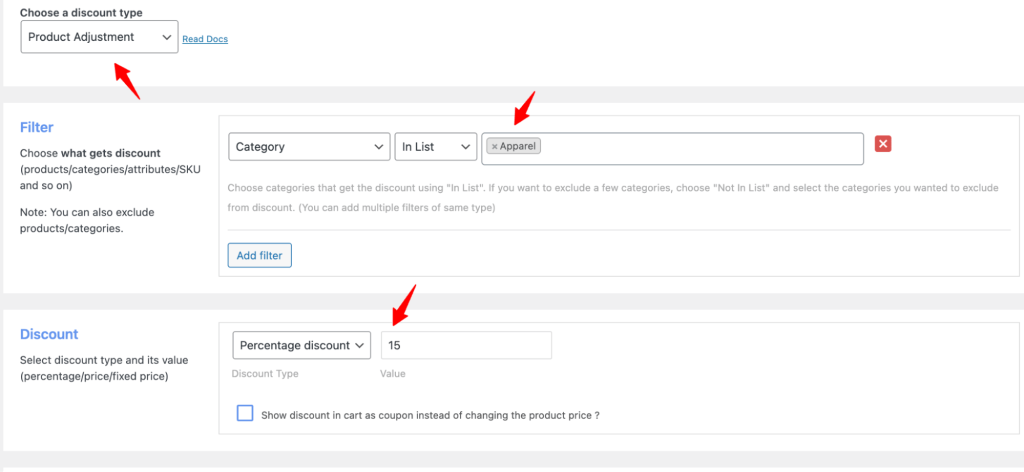
Example: 15% off all products in the “Apparel” category.
Go to WooCommerce → Discount Rules → Add New Rule. Enter a rule name like “Apparel 15% Off.”
- Discount Type: Select “Product Adjustment”
- Filter: Select “Categories” from the dropdown, then choose “Apparel”
- Discount: Select “Percentage discount” and enter 15
Click Save and enable the rule. Every product in the Apparel category now shows the discounted price on the product page, cart, and checkout — no coupon code needed.
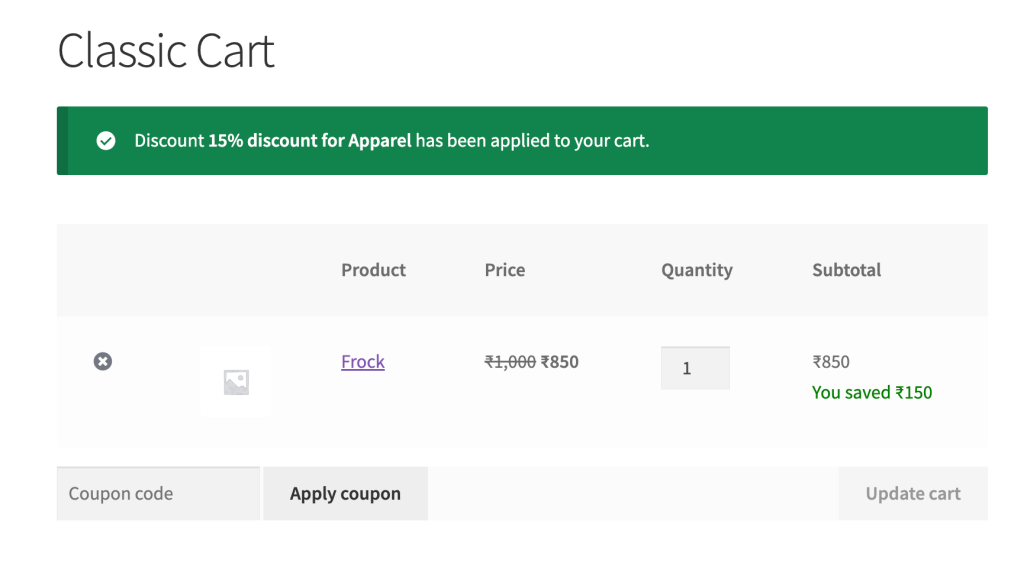
Watch out for: If a product belongs to multiple categories (e.g., “Apparel” AND “Sale Items”), the discount applies as long as the product is in the targeted category.
But if you have conflicting rules targeting different categories the same product belongs to, WooCommerce applies only one — typically the first rule or the highest discount, depending on your settings. Check Discount Rules → Settings → “If multiple rules met” to control this behavior.
2. Category Discount Based on User Roles
What you’re doing: Giving specific customer groups (wholesale, VIP, subscribers) automatic pricing on a category — while regular customers see full price.
Example: Wholesale customers get $50 off Electronics when they spend over $500.
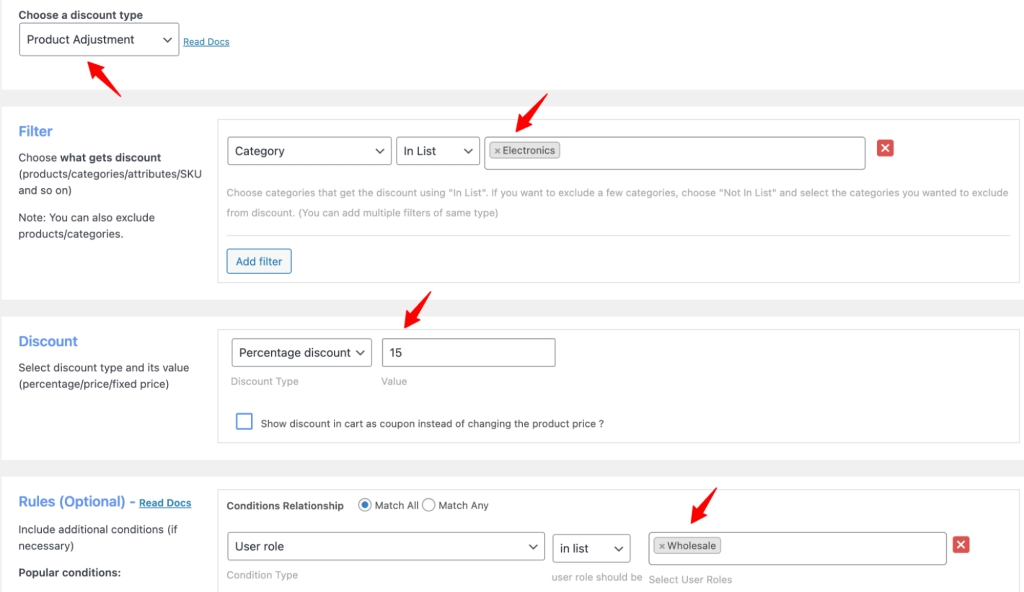
Go to WooCommerce → Discount Rules → Add New Rule. Name it “Wholesale Electronics Discount.”
- Discount Type: Select “Product Adjustment”
- Filter: Select “Categories” → choose “Electronics”
- Discount: Select “Percentage discount” and enter 15
- Conditions: Click “Add Condition” → select “User Role” → choose “Wholesale Customer”
- Add another condition: Select “Subtotal” → set to 500 (customer must spend $500+ for the discount to apply)
Save and enable the rule.
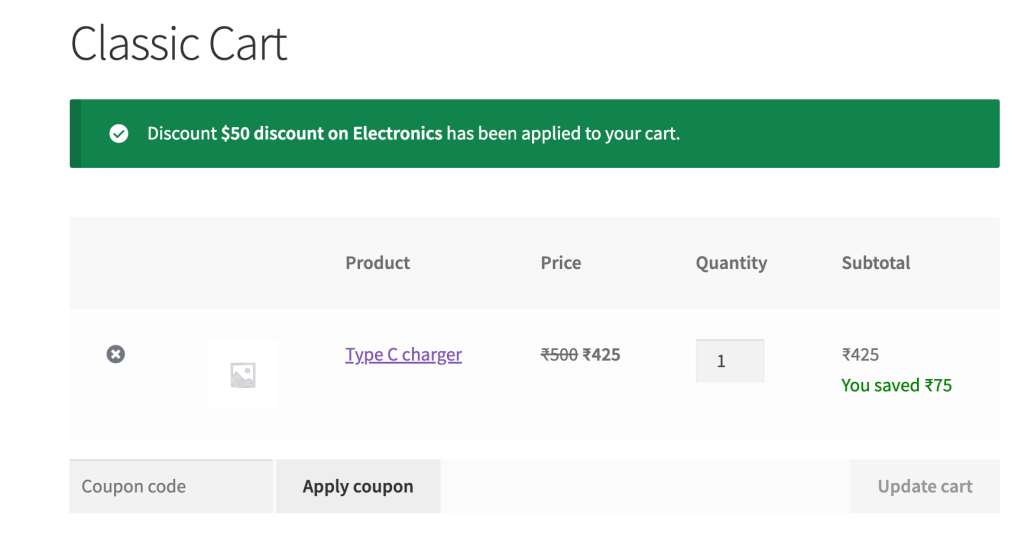
This setup pairs naturally with WPLoyalty’s loyalty levels. If you use WPLoyalty to assign Gold/Silver/Platinum tiers, you can create separate category discount rules for each tier — Gold gets 10% off, Platinum gets 20% off — making tier advancement feel tangible.
Watch out for: User role conditions require the customer to be logged in. Guest shoppers won’t see role-based discounts. If your store has a large guest checkout audience, consider adding an incentive to create an account — like offering signup reward points through WPLoyalty.
3. Category BOGO Deal
What you’re doing: Running a “Buy One Get One” deal restricted to a specific category — not storewide.
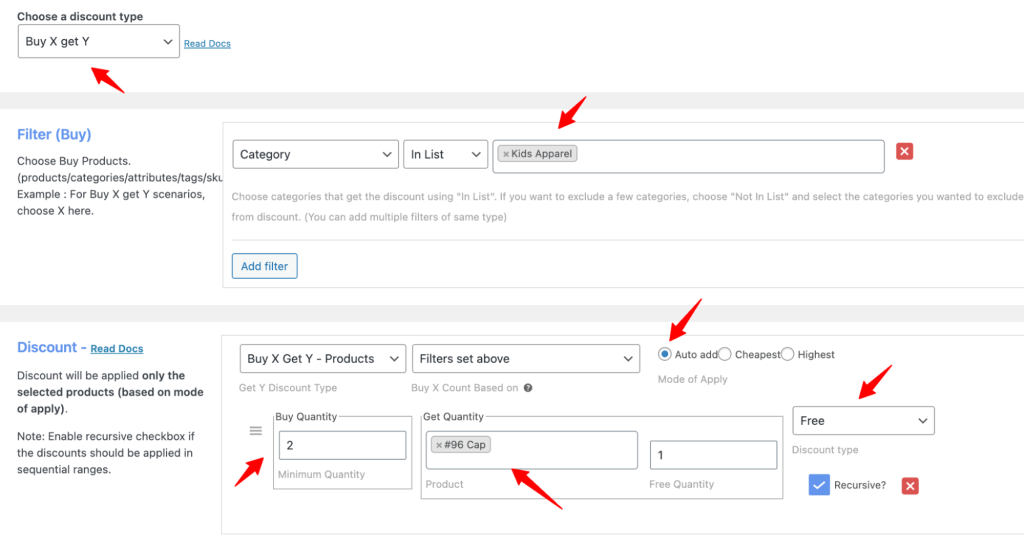
Example: Buy 2 items from “Kids Apparel,” get 1 cap free.
Go to WooCommerce → Discount Rules → Add New Rule. Name it “Kids Apparel BOGO.”
- Discount Type: Select “Buy X Get Y”
- Filter: Select “Categories” → choose “Kids Apparel”
- Discount/Get Y: Select “Buy X Get Y – Products” → choose “Cap” as the free product
- Minimum quantity: Set to 2
- Free quantity: Set to 1
- Discount type: Select “Free”
- Recursive: Enable if you want buy 4 get 2 free, buy 6 get 3 free
Save and enable.
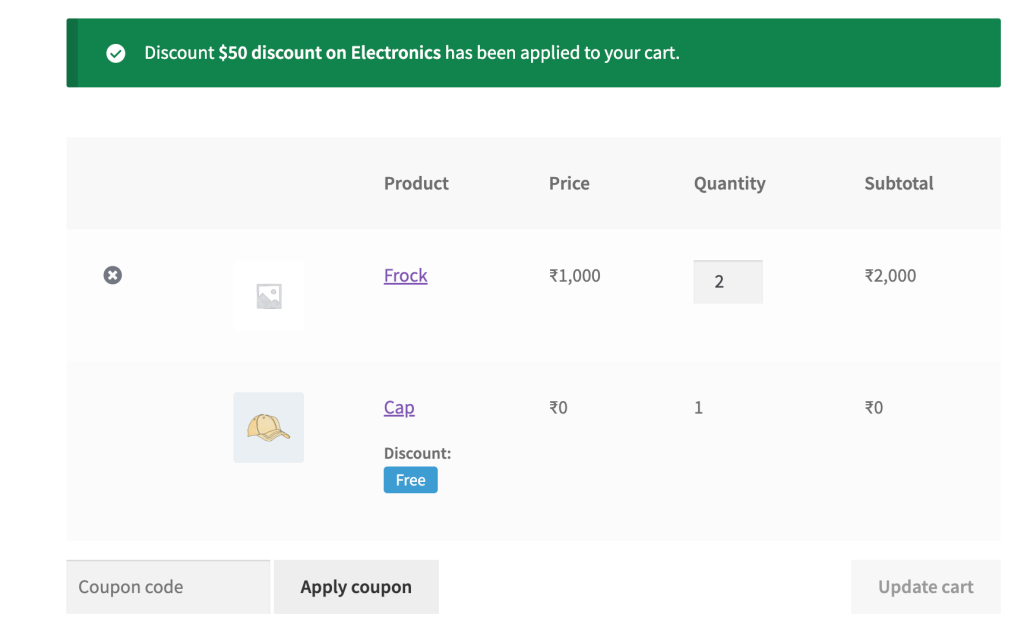
For a deeper walkthrough on all BOGO variations, see our complete WooCommerce BOGO coupon guide.
Watch out for: The free product (Cap) must be published and in stock. If it’s out of stock or in draft, the BOGO won’t trigger. I’ve spent 20 minutes troubleshooting a “broken” BOGO that was actually just a product set to “Out of stock” in the backend.
Also Read: Best WooCommerce Free Gift Plugins
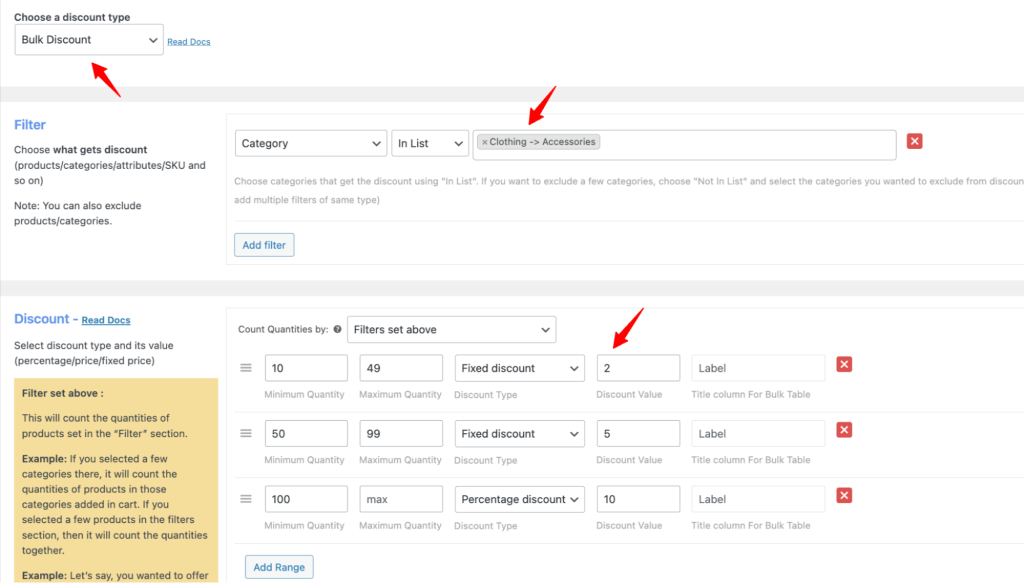
4. Create Bulk Tiered Pricing for a Category
What you’re doing: Offering bigger discounts when customers buy more items from a category — encouraging bulk purchases.
Example:
- Buy 10-49 Accessories → $2 off each
- Buy 50-99 Accessories → $5 off each
- Buy 100+ Accessories → $10 off each
Go to WooCommerce → Discount Rules → Add New Rule. Name it “Accessories Bulk Tiered Pricing.”
- Discount Type: Select “Bulk Discount”
- Filter: Select “Categories” → choose “Accessories”
- Discount:
- Range 1: Min 10, Max 49, Fixed discount $2
- Range 2: Min 50, Max 99, Fixed discount $5
- Range 3: Min 100, Max blank, Fixed discount $10
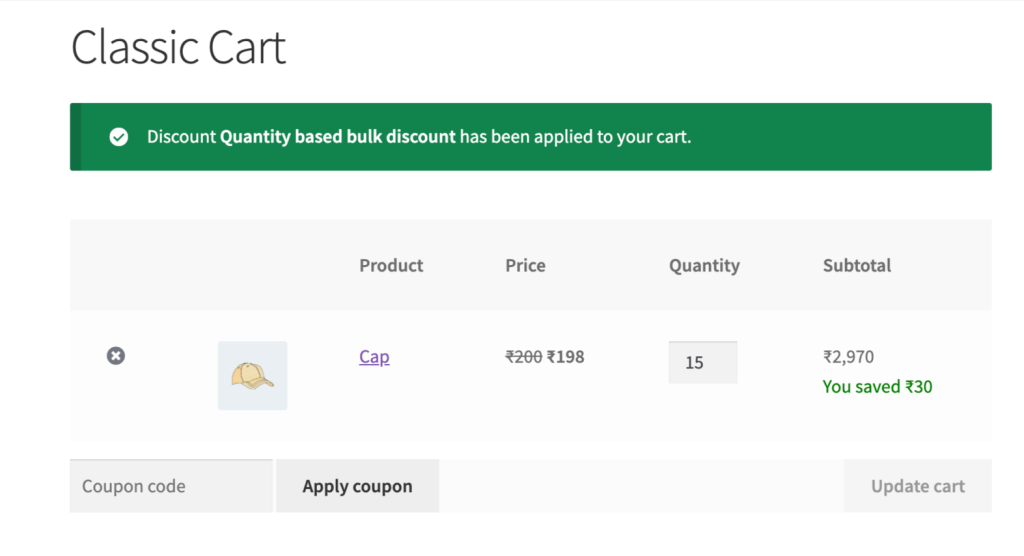
Save and enable. The plugin shows a pricing table on the product page so customers see exactly what they’ll save at each quantity.
5. Create a Cross-Category Combination Discount
What you’re doing: Offering a discount only when a customer buys from two specific categories together — encouraging cross-category shopping.
Example: Buy from “Apparel” AND “Accessories” together and get 20% off.
Go to WooCommerce → Discount Rules → Add New Rule. Name it “Apparel + Accessories Combo 20%.”
- Discount Type: Select “Product Adjustment”
- Filter: Select “Categories” → choose “In List” → add both “Apparel” and “Accessories”
- Discount: Select “Percentage discount” and enter 15
- Conditions: Click “Add Condition” → select “Category Combination” → select both categories → set minimum quantity per category (1 each)
Save and enable.
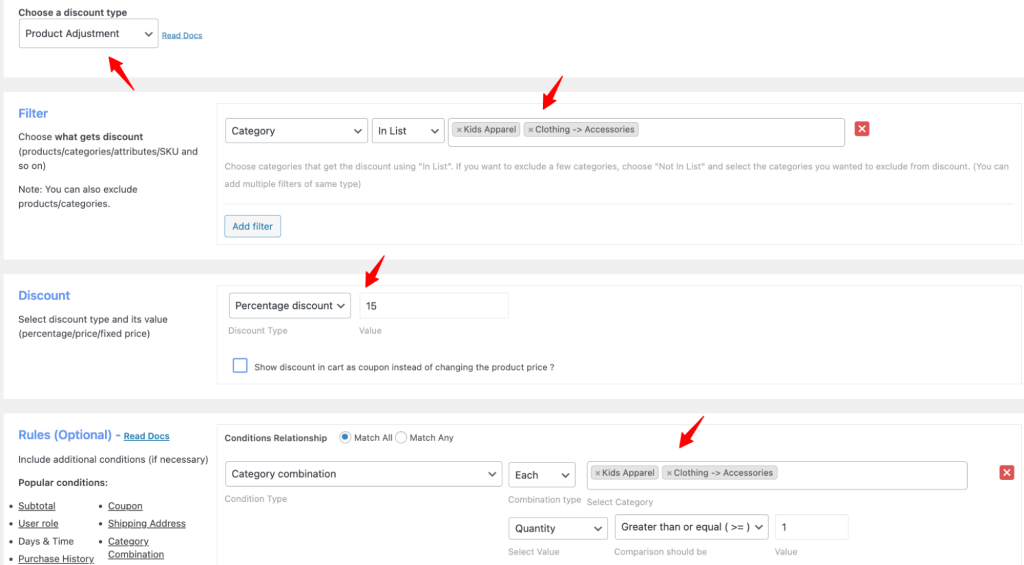
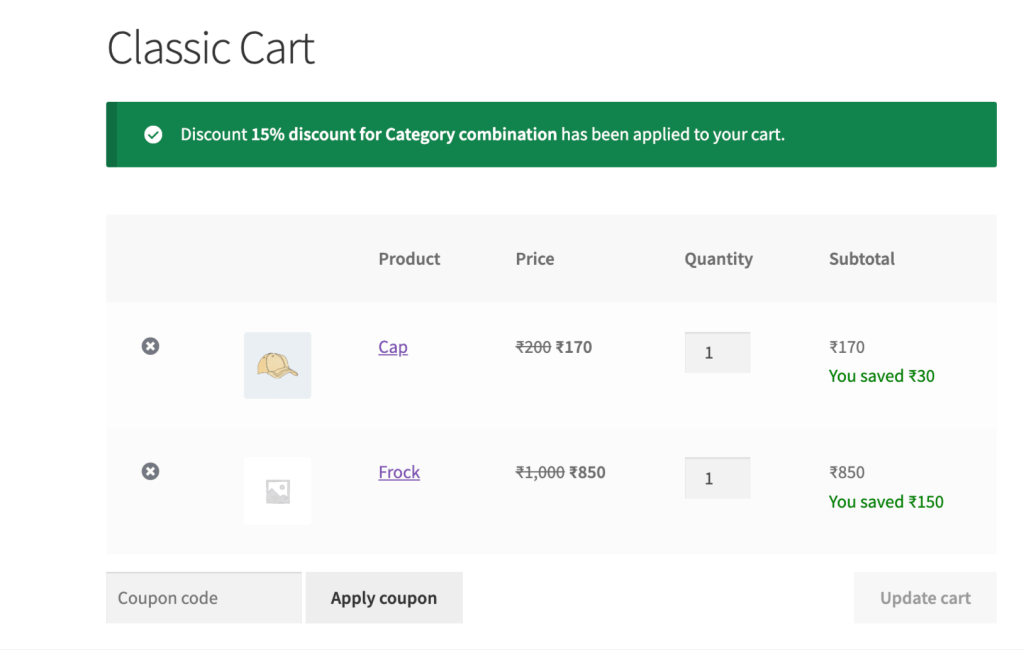
This is the most underused category discount type. None of the top 5 ranking guides walk through cross-category combinations with conditions. But it’s one of the most effective AOV strategies — customers must shop across departments to unlock the deal.
Watch out for: The “In List” filter means products from EITHER category get the discount. The “Category Combination” condition ensures the discount only fires when BOTH categories are in the cart. Don’t skip the condition — without it, buying from just one category triggers the discount.
Related Read: WooCommerce vs Shopify
Verify Your Category Discount Is Working
Before promoting the deal, run these checks:
- Add a product from the discounted category to your cart. The discounted price should appear on the product page (strikethrough on original price) and in the cart. If it doesn’t show on the product page but does in the cart, check Discount Rules → Settings → “Show discount on product page” toggle.
- Add a product from a non-discounted category. Confirm it stays at full price. This catches the “filter set to All Products instead of Categories” mistake.
- Test with a guest account (incognito browser). If your discount has user role conditions, it should NOT appear for logged-out visitors.
- Test on mobile. Some themes display discounted prices differently on mobile. Confirm the strikethrough and “You saved” message are visible.
Pro tip: Enable the “You saved” message in Discount Rules → Settings → General. It shows customers exactly how much they’re saving on the cart page. Customers who see savings confirmation are less likely to abandon the cart.
Why Is My WooCommerce Category Discount Not Working? (Troubleshooting)
This section exists because “woocommerce category discount not working” is one of the most searched variations of this keyword — and no competing guide addresses it properly. Here are the 4 most common causes and their fixes.
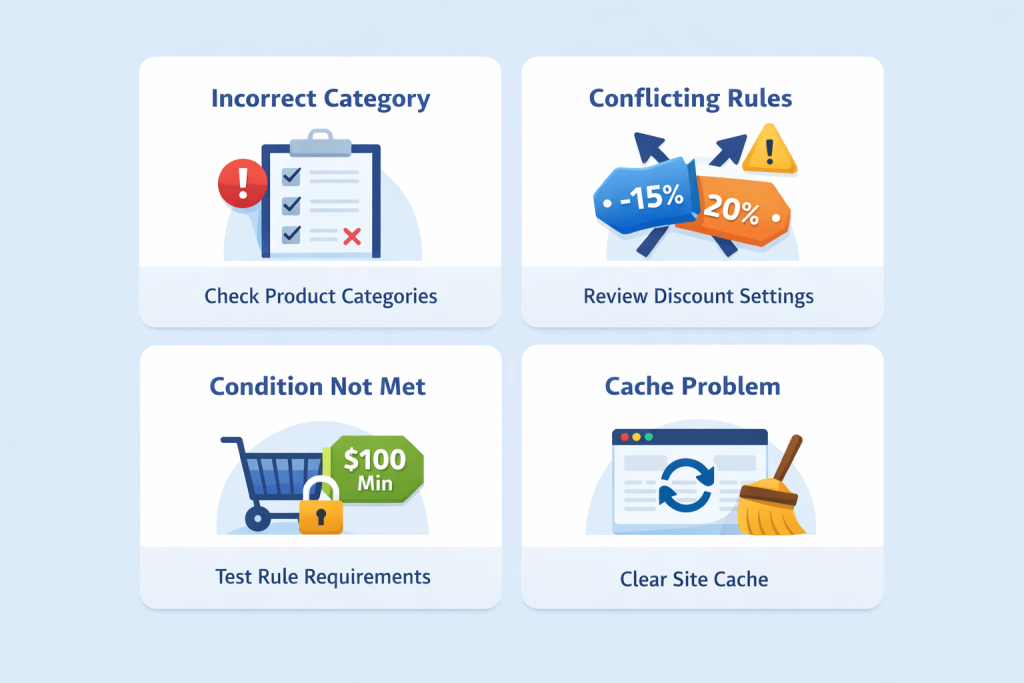
Issue #1: Products aren’t assigned to the correct category
You created a discount for “Accessories” but some products are under “Miscellaneous” or a subcategory not included in the rule.
Fix: Go to Products → All Products → filter by the discounted category. Confirm every product is actually assigned. Important: in Discount Rules, selecting a parent category does NOT automatically include subcategories — you need to add them explicitly.
Issue #2: Conflicting discount rules or coupons
If you have a storewide coupon active AND a category discount rule, WooCommerce may prioritize one over the other. Some setups block stacking entirely.
Fix: Go to Discount Rules → Settings → check “Apply all matched rules” or “Apply first matched rule.” If set to “first matched,” your category rule might be overridden by a storewide rule that triggers earlier. Also check WooCommerce → Marketing → Coupons for any active coupons with “Individual use only” enabled — these block all other discounts.
Issue #3: Conditions aren’t met
Your rule requires a minimum cart subtotal of $100, or a specific user role, or a date range — and the test scenario doesn’t meet those conditions.
Fix: Temporarily remove all conditions from the rule and test again. If the discount applies without conditions, re-add them one at a time to identify which condition is blocking.
Issue #4: Caching is showing stale prices
Page caching (WP Rocket, LiteSpeed, W3 Total Cache) can cache the product page at full price and not update when a discount rule activates.
Fix: Clear all caches — page cache, object cache, and CDN cache. Then test in an incognito browser. If the discount appears after clearing cache, add Discount Rules’ dynamic pricing elements to your cache exclusion list. Our guide on best WordPress cache plugins covers how caching interacts with dynamic content.
Category Discount Strategies That Actually Increase Profit (Not Just Sales)
Strategy 1: Discount high-margin categories, never low-margin ones
This sounds obvious, but I’ve watched store owners discount electronics (12% margin) the same as accessories (60% margin) because “everything should be on sale.” Run the margin math for every category before creating a rule.
If your product costs $80 and sells for $100, a 20% discount sells it at $80 — zero profit. A 10% discount sells it at $90 — $10 profit. The right discount depth depends entirely on what your category can absorb.
Strategy 2: Use category discounts to cross-sell, not just clear inventory
Instead of “20% off Accessories,” try “15% off Accessories when you buy any full-price item from Electronics.” The customer buys a full-margin electronics item AND a discounted accessory.
Your AOV goes up, and the anchor item covers the accessory discount. Set this up using a Category Combination condition (see Scenario 5 above).
Strategy 3: Award double loyalty points on discounted categories
The discount gets the first sale. But without a follow-up incentive, that customer has no reason to come back at full price. With WPLoyalty’s points system, you can award 2x points on purchases from discounted categories. The customer feels doubly rewarded — a lower price AND more points. Those points drive the next purchase at regular price.
Strategy 4: Set minimum cart value conditions to protect AOV
A 15% off Accessories discount with no minimum means a customer can buy a $5 keychain at $4.25. That’s not useful. Set a cart subtotal condition of $50 or $75 in the Discount Rules conditions section. Now the discount only triggers when the cart is large enough to justify the margin cost. I’ve found that $50-$75 minimums work for most mid-range WooCommerce stores.
Strategy 5: A/B test discount depth on the same category
Run 10% off for one week, then 20% off the next week, on the same category. Compare total profit (not revenue) at each level. On a skincare store I worked with, 10% off generated $3,800 profit over 7 days. 20% off generated $4,100 revenue but only $2,900 profit — because the deeper discount attracted bulk buyers who cleaned out low-margin items. The smaller discount was more profitable.
4 Category Discount Mistakes That Cost You Money
Mistake #1: Discounting categories that already sell well
Your bestselling category doesn’t need a discount — it’s already converting. Discounting it just erodes margin for zero incremental revenue. Target the categories that need a push: slow-moving inventory, new product lines, or last-season items approaching clearance.
Mistake #2: Running category discounts with no end date
A “Summer Accessories Sale” that’s still running in November isn’t a sale anymore — it’s a permanent price cut. Customers stop feeling urgency, and you’ve trained them to expect the lower price. Set clear start and end dates in the Discount Rules conditions. 7-14 days is the sweet spot for promotional category discounts. For permanent wholesale pricing, use user role conditions — not open-ended time-limited rules.
Mistake #3: Not checking how your discount stacks with other promotions
A customer applies your “APPAREL20” category coupon and also gets a storewide 10% off coupon from their welcome email. That’s 30% off — far more than you intended. Check Discount Rules → Settings → “If multiple rules met” to decide whether rules stack or only the highest applies. Also review active coupons in WooCommerce → Marketing → Coupons for anything with “Individual use only” unchecked. Stacking surprises are the #1 margin killer I see on client stores.
Mistake #4: Not displaying the discounted price on product pages
If customers only see the discount at checkout after entering a coupon code, most will never know the deal exists. Enable the strikethrough price display in Discount Rules → Settings → General. The original price should show crossed out with the discounted price beside it — on the product page, category page, and cart.
Without this visibility, category discounts lose most of their psychological impact. Our guide on WooCommerce checkout optimization covers how pricing clarity at every stage reduces drop-off.
Related Read: How to Reduce eCommerce Churn Rate.
How to Combine Category Discounts with a Loyalty Program for Repeat Sales
A category discount drives immediate action. A loyalty program drives long-term behavior. When you connect the two, a single category sale feeds months of repeat purchases.
Here’s how to set it up with WPLoyalty and Discount Rules (both built by Flycart):
1. Award double points on discounted categories. In WPLoyalty, create a points campaign for purchases. Set a bonus multiplier for orders containing products from your discounted category. A customer buying from the “Accessories 20% Off” sale earns 2x points compared to a full-price purchase. The discount drives the initial sale. The bonus points accelerate their path to a reward — which drives the next sale at regular price.
2. Use the Discount Rule Integration add-on for automatic level-based pricing. The Discount Rule Integration add-on ($85/year) connects WPLoyalty directly with Discount Rules. Customers in Silver/Gold/Platinum loyalty levels automatically receive flat discounts on specific categories — no coupon codes, no separate campaigns. Gold members see 10% off Electronics. Platinum sees 20%. This makes tier advancement feel like real money, not just a badge.
3. Trigger point expiry reminders on discounted category purchases. When a customer earns bonus points from a discounted category, set the points to expire in 60-90 days using WPLoyalty’s point expiry. Send reminders at 14 days and 3 days before expiry. The urgency drives another store visit — often at full price.
4. Run a review rewards campaign on discounted categories. More purchases from discounted categories means more potential reviews. With WPLoyalty, you can award points for product reviews. Customer buys a discounted accessory → leaves a review → earns 50 points → gets closer to their next reward. The category discount did triple duty: moved inventory, generated social proof, and earned a future purchase.
5. Stack category discounts with referral rewards. With WPLoyalty’s referral program, customers who buy from a discounted category can share a referral link and earn points when friends buy. One category sale generates two customers and a future purchase.
The WPLoyalty launcher widget ties it all together visually — a floating panel showing points balance, available rewards, and referral link. Customers who see their points growing during a category sale come back more than customers who just got a discount and left.
Don’t stop at discounts—use WPLoyalty to create long-term customer retention.
Real-World Category Discount Examples
Example 1: Clearing 340 units of seasonal inventory in 2 weeks
This is the accessories store from the introduction. The owner had been running storewide 15% off sales quarterly. When she switched to a targeted 20% category discount on Accessories only (her highest-margin, slowest-moving category), she sold $4,200 in accessories inventory in 14 days. Electronics — her highest-volume, lowest-margin category — stayed at full price throughout.
Total margin was $840 higher than the previous quarter’s storewide sale, despite generating less total revenue.
Example 2: B2B office supply store — 35% monthly revenue increase from category bulk pricing
A WooCommerce store selling office supplies to businesses added three bulk pricing tiers to their “Paper & Ink” category using Discount Rules’ bulk discount feature. Before the tiers, wholesale accounts ordered 5-10 units per SKU. After adding “Buy 20+, pay $8 instead of $12,” average wholesale orders jumped to 25+ units. Monthly B2B revenue from that category grew 35% in 8 weeks — from bigger orders, not more customers.
What to Do Next
You now have category discounts running on your WooCommerce store. They’re moving slow inventory, rewarding wholesale buyers, and increasing average order value. But a category discount alone is a one-time tactic.
Loyalty programs boost retention 15-35% when paired with promotional strategies (Marketing LTB, 2025). With WPLoyalty, you award loyalty points on every discounted category purchase. Those points convert into future discounts, free products, or free shipping. The category discount got the first sale. The loyalty points secure the second, third, and tenth.
Since WPLoyalty and Discount Rules are both built by Flycart, the Discount Rule Integration add-on connects them directly — customers in loyalty tiers automatically get category-specific pricing without you creating separate rules.
Install WPLoyalty free and set up your first loyalty campaign — award points for every purchase, review, or referral. It takes under 10 minutes. Then connect it to your category discounts for a retention system that compounds.
Keep Reading:
Go deeper on discounts:
Related retention strategies:
- Difference Between Loyalty and Referral Programs
- 50 Best Referral Program Examples
- Best WooCommerce Upsell Plugins
Frequently Asked Questions
Partially. WooCommerce’s built-in coupons can restrict to specific categories under the “Usage Restrictions” tab. But you need customers to enter the coupon code manually — there’s no auto-apply.
It depends on your margins. Average eCommerce discount rates range from 10-30% depending on category. Fashion runs 30-40%. Luxury stays under 15%. Calculate: if your product costs $60 and sells for $100, a 20% discount means you sell at $80 — still $20 profit. A 40% discount means you sell at $60 — zero profit. Always run the math per category.
Yes. Create separate rules in Discount Rules for each category. “Apparel 15% off” and “Accessories 20% off” can run simultaneously. Check Discount Rules → Settings → “If multiple rules met” to control whether both apply when a product belongs to multiple categories.
Three common causes: caching (clear all caches and test in incognito), the “Show discount on product page” toggle is off in Discount Rules settings, or your theme doesn’t support the strikethrough price display.
Try switching to a default theme temporarily. If the discount appears, your theme needs a compatibility fix. Our guide on speeding up your WooCommerce site covers cache management.
Yes — this is the most powerful setup. With WPLoyalty and the Discount Rule Integration add-on, customers in loyalty tiers automatically get category-specific discounts. Gold members see 10% off Electronics. Platinum sees 20%. No coupon codes, no separate campaigns. The integration handles it automatically.
Discount your slowest-moving, highest-margin category. Check WooCommerce → Analytics → Products to find which categories have the lowest sales velocity. Then verify margins — only discount categories where margin exceeds the discount rate by at least 15 points. Discounting a 12% margin category at 15% off means you lose money on every sale.

