


WooCommerce doesn’t support BOGO deals. Not natively, anyway. You can create percentage discounts, fixed cart discounts, and fixed product discounts through the built-in coupon system. But there’s no “Buy One Get One” option anywhere in the settings.
I found this out the hard way when a client asked me to set up a “Buy 1 Get 1 Free” deal on their organic juice line. I spent 20 minutes clicking through WooCommerce → Marketing → Coupons before accepting what the docs confirmed: you need a plugin.
After testing three different BOGO plugins on live stores, I settled on Discount Rules for WooCommerce by Flycart. It handles every BOGO variation I’ve needed — same-product deals, cross-product deals, category-based offers, recursive stacking, and conditional triggers. This guide walks you through setting all of those up, plus the strategy decisions that determine whether your BOGO deal actually makes money or quietly eats your margins.
By the end, you’ll have a working WooCommerce BOGO coupon and a clear framework for choosing which BOGO type fits your store.
What Is a WooCommerce BOGO Coupon?
A BOGO coupon is a conditional discount: if the customer buys a qualifying product, they get a second product free or at a reduced price. The “second product” can be the same item or a completely different one.
The simplest analogy: think of a coffee shop punch card. Buy 9 coffees, get the 10th free. A BOGO coupon works the same way, except it happens in real time inside the shopping cart — and the “reward” can be anything from a free duplicate to a 50% discount on a complementary product.
WooCommerce’s default coupons can’t handle this because they have no conditional logic. A regular coupon says “take $5 off the cart.” A BOGO coupon says “IF the cart contains Product A, THEN apply 100% discount to Product B.” That IF/THEN logic requires a plugin.
Research compiled by Envive found that 93% of consumers have used a BOGO offer at some point, and about 66% actively prefer BOGO deals over other discount formats. The psychological pull of “free” consistently outperforms equivalent percentage discounts — even when the math is identical.
If you’re new to running promotions alongside a retention strategy, our guide on what loyalty programs are and their benefits explains why discounts alone don’t build repeat customers.
Why WooCommerce BOGO Coupons Work (And When They Don’t)
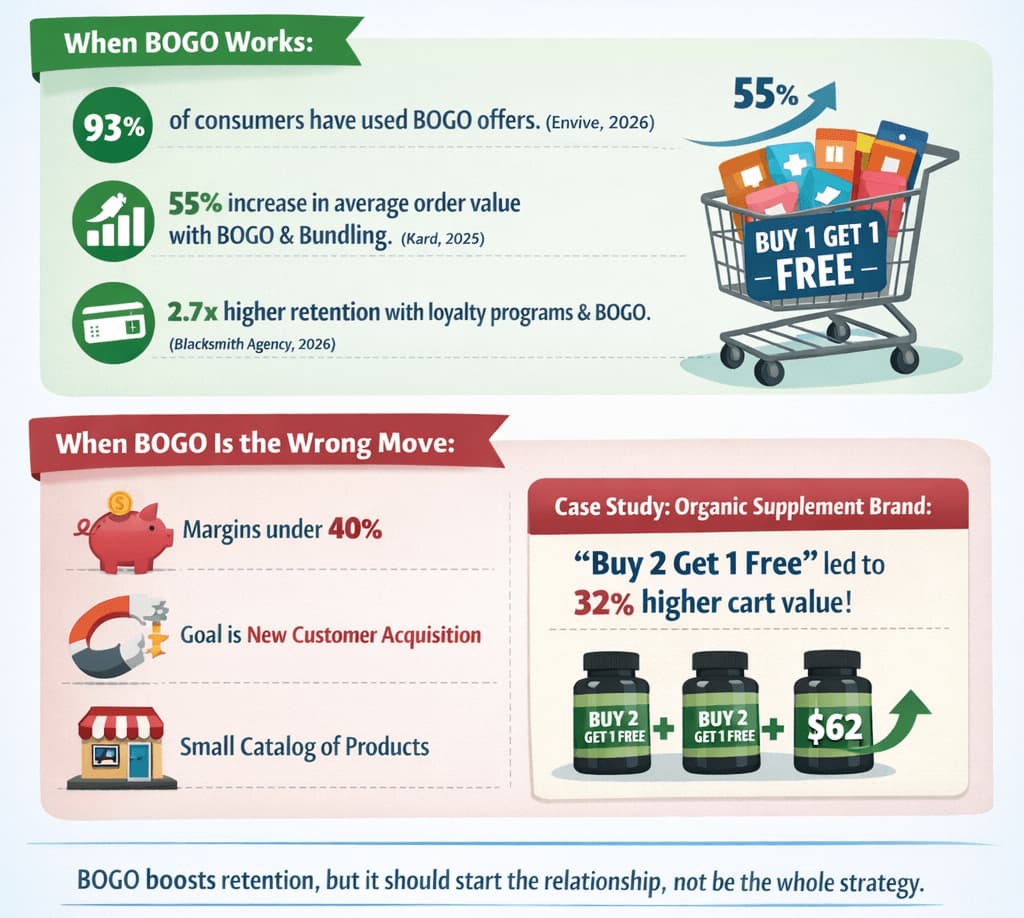
Most guides give you a stat dump and move on. Here are the numbers — but I also want to share when BOGO is the wrong choice, because nobody else talks about that.
When BOGO works:
- 93% of consumers have used BOGO offers — it’s the most recognized promotion format in retail (Envive, 2026)
- Stores using bundling and BOGO strategies see a 55% lift in average order value (Kard, 2025)
- A 5% increase in customer retention boosts profits 25-95% (Bain & Company / Harvard Business School) — and BOGO that feeds into a loyalty program drives that retention
- WooCommerce stores using loyalty programs see 2.7x higher retention (Blacksmith Agency, 2026)
When BOGO is the wrong move:
- Products with margins under 40%. A BOGO on a product with 30% margin means you lose money on every paired sale. A candle priced at $24 with $16 cost? You get $24 revenue for $32 in product. That’s an $8 loss per BOGO.
- When your goal is new customer acquisition. BOGO attracts bargain hunters. Pair it with loyalty points enrollment so the cheap entry feeds into a system rewarding repeat behavior.
- When your catalog is too small. A 12-product store running storewide BOGO looks like a clearance sale. BOGO works best when targeted at specific items.
One Flycart client — an organic supplement brand — added a “Buy 2 Get 1 Free” tier using Discount Rules for WooCommerce. Within six weeks, their average cart climbed from $47 to $62. The tier that drove 40% of the bulk orders was “Buy 3 bottles, save 15%.”
The connection between BOGO promotions and customer retention strategies is real — but only if the BOGO is the beginning of the relationship, not the whole thing.
Related Read: Customer Acquisition vs Customer Retention
What You’ll Need Before Starting
- WooCommerce 8.0+ installed and active
- WooCommerce coupons enabled — WooCommerce → Settings → General → confirm “Enable coupons” is checked
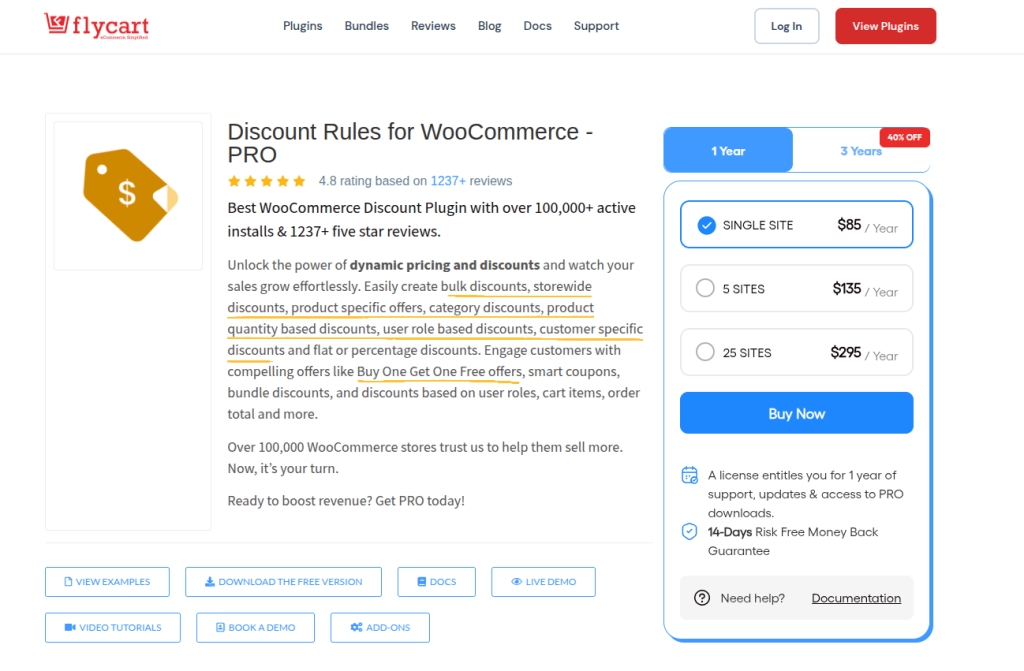
- Discount Rules for WooCommerce – PRO by Flycart — 100,000+ active installs, 1,237+ five-star reviews on WordPress.org, $85/year. This is one of Flycart’s core products — the same company behind WPLoyalty.
- At least 2 published products to test your BOGO deal
- Basic WooCommerce skills — you should know how to create products and navigate the admin. If you’re brand new, how to create a loyalty program in WooCommerce covers the foundational setup.
⏱️ Time estimate: 15-20 minutes to complete this guide, including testing.
Make your BOGO deals profitable long-term with WPLoyalty rewards.
Choose Your BOGO Type First (Then Build)
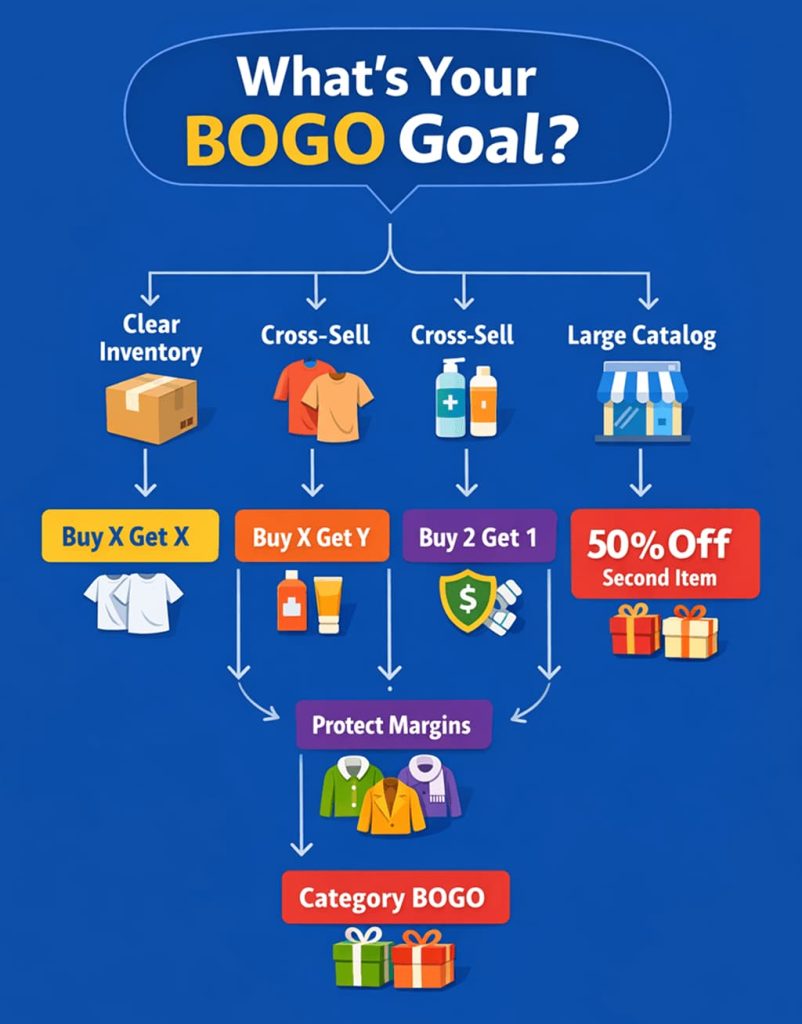
This is the step every competing guide skips. They jump straight into the plugin setup without asking what type of BOGO deal fits your situation. Here’s the decision framework:
Buy X Get X (Same Product) Customer buys 1 T-shirt, gets a second T-shirt free. Use this when: you want to clear inventory of a specific SKU, or encourage customers to stock up on consumables (supplements, coffee, pet food).
Buy X Get Y (Different Product) Customer buys a shampoo, gets a conditioner free. Use this when: you want to cross-sell complementary products, introduce a new item, or move a slow-selling product by pairing it with a bestseller.
Buy 2 Get 1 Free Customer buys 3, pays for 2. Use this when: you want higher AOV without giving away 50% of the order. This is the most margin-friendly BOGO format.
Buy X Get Y at 50% Off Customer buys a jacket, gets a scarf at half price. Use this when: your margins are too thin for a full free product, but you still want the “deal” psychology.
Category-Based BOGO Buy anything from Category A, get anything from Category B free. Use this when: you have a large catalog and specific product-to-product matching would be impractical.
How to Set Up a WooCommerce BOGO Coupon (Step-by-Step)
We’re using Discount Rules for WooCommerce – PRO by Flycart. If you’ve already chosen a different plugin, the concepts transfer — but the exact UI will differ.
Step 1: Install and Activate the Discount Rules Plugin
What you’re doing: Adding BOGO functionality that WooCommerce doesn’t include by default.
Go to WordPress dashboard → Plugins → Add New. Search for “Discount Rules for WooCommerce.” You’ll see the Flycart plugin with 100,000+ active installs. Click Install, then Activate.
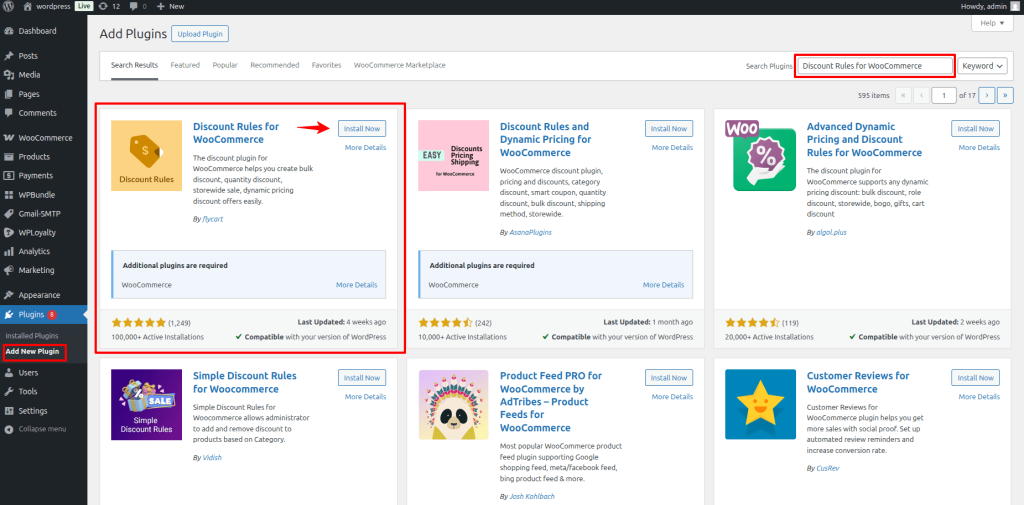
This installs the free version. The free version handles percentage and fixed discounts, but BOGO requires the PRO version. Purchase it from Flycart’s website, then Buy the plugin → Upload Plugin → select the PRO .zip file → Install Now → Activate.
Keep both versions active. The PRO extends the free version — it doesn’t replace it.
After activation, look in your WordPress sidebar. Under WooCommerce, you’ll now see a “Discount Rules” menu item.
Watch out for: If you only install the free version and skip the PRO upload, you can’t see “Buy X Get X” or “Buy X Get Y” options. Those only appear after PRO activation.
1. Create a “Buy 1 Get 1 Free” Rule (Buy X Get X)
What you’re doing: Building the most common BOGO deal — buy one product and get the same product free.
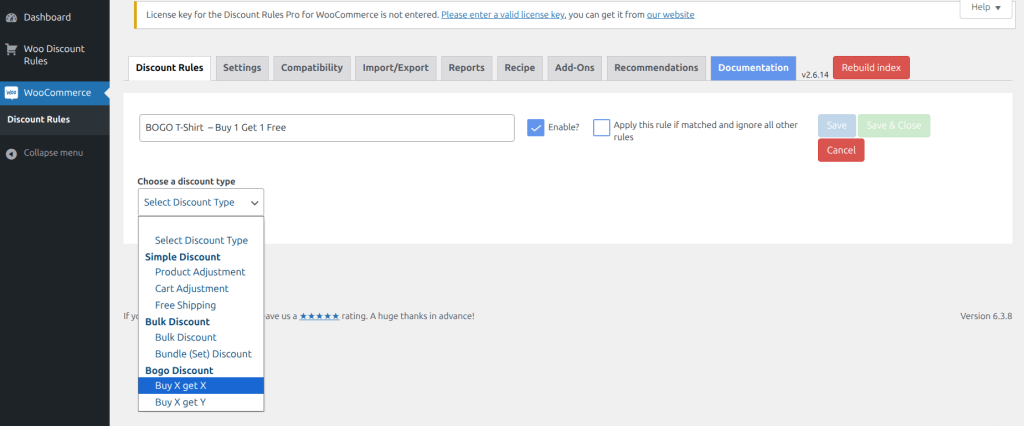
Click “Add New Rule.” The rule builder opens with a form that has several sections stacked vertically: Rule Name, Discount Type, Filters, Discount, and Conditions.
Rule Name: Type something descriptive — “BOGO T-Shirt – Buy 1 Get 1 Free.” This is internal only. Customers won’t see it.
Discount Type: Click the dropdown. You’ll see options including Product Adjustment, Cart Adjustment, Bulk Discount, Bundle Discount, Buy X Get X, and Buy X Get Y. Select “Buy X Get X.”
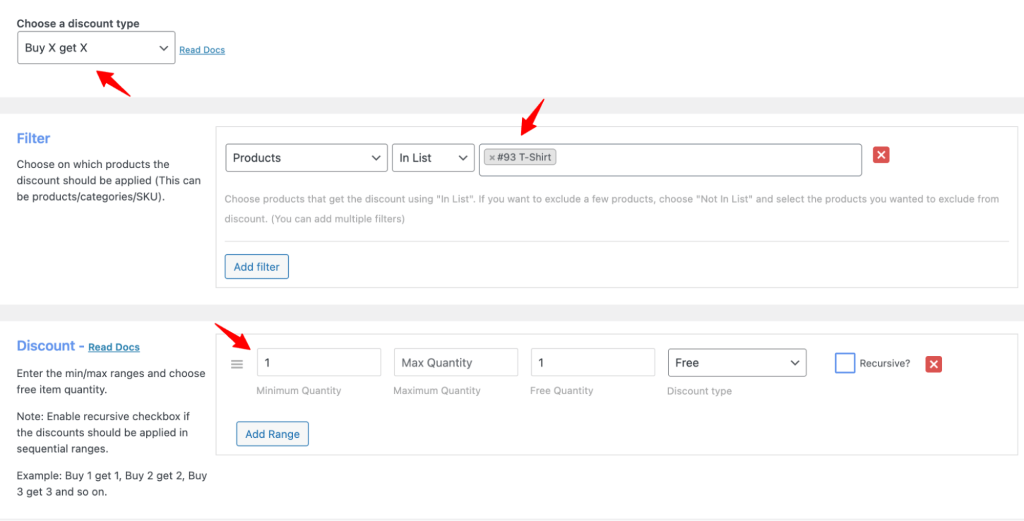
Filters section: This controls which products trigger the deal. Click the dropdown — you’ll see options: All Products, Products, Categories, Attributes, Tags, SKUs. For our example, select “Products” and search for “T-Shirt.” Select it.
Discount section: This is where the BOGO logic lives. You’ll see fields for:
- Minimum quantity: Set to 1 (customer must buy at least 1)
- Maximum quantity: Set to 1 (the deal applies to 1 qualifying purchase)
- Free quantity: Set to 1 (customer gets 1 free)
- Discount type: Select “Free” from the dropdown (other options: Percentage Discount, Fixed Discount, which we’ll use later)
Below these fields, you’ll see a “Recursive” checkbox. Leave this unchecked for a standard one-time BOGO. When checked, the deal repeats: buy 2 get 2 free, buy 3 get 3 free, and so on. More on this in the Advanced section.
Click “Save” in the top-right corner. The rule appears in your dashboard as “Enabled.”
Rule Page:
Cart Page:
Watch out for: The “Count quantities” dropdown controls how the plugin counts. “Filter set above” counts only the filtered product (T-Shirt).
“All items in cart” counts everything in the cart. For product-specific BOGO, always use “Filter set above” — otherwise, a customer buying any random product could accidentally trigger your Apple Juice BOGO.
2. Create a “Buy T-Shirt Get a Cap for Free” Rule (Buy X Get Y)
What you’re doing: Building a cross-sell BOGO where the free product differs from the purchased product.
Click “Add New Rule.” Name it “BOGO Cross-Sell – Buy T-Shirt Get Cap Free.” For Discount Type, select “Buy X Get Y.”
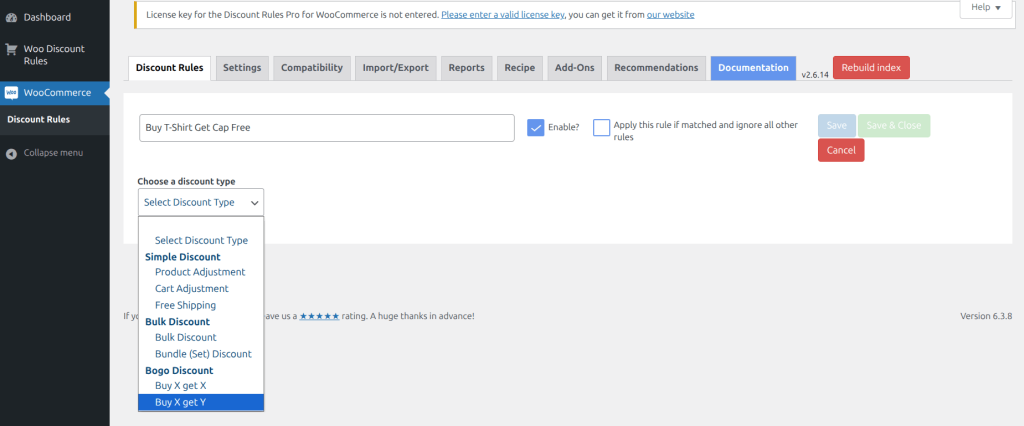
The form changes. You now see the Filters section (what triggers the deal) and a separate Discount/Get Y section (what the customer receives).
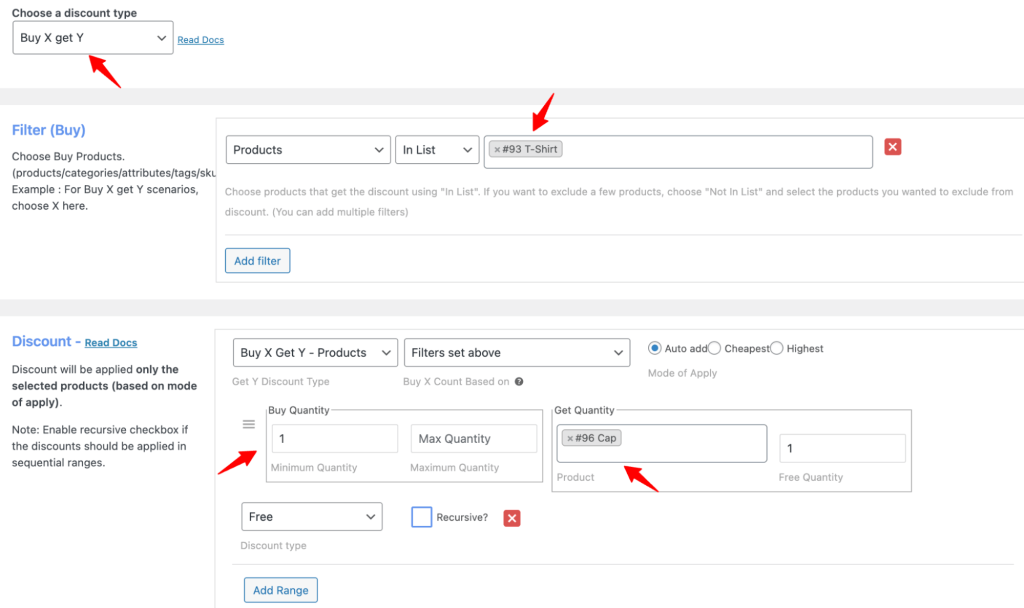
Filters (the “Buy” side): Select “Products” and search for “T-Shirt.”
Discount/Get Y (the “Get” side): You’ll see a dropdown with three options: Buy X Get Y – Products (specific product), Buy X Get Y – Categories (any product from a category), and Buy X Get Y – All (cheapest/most expensive in cart). Select “Buy X Get Y – Products” and choose “Cap.”
Set minimum quantity to 1, free quantity to 1, discount type to “Free.” Click Save.
Rule Page:
Cart Page:
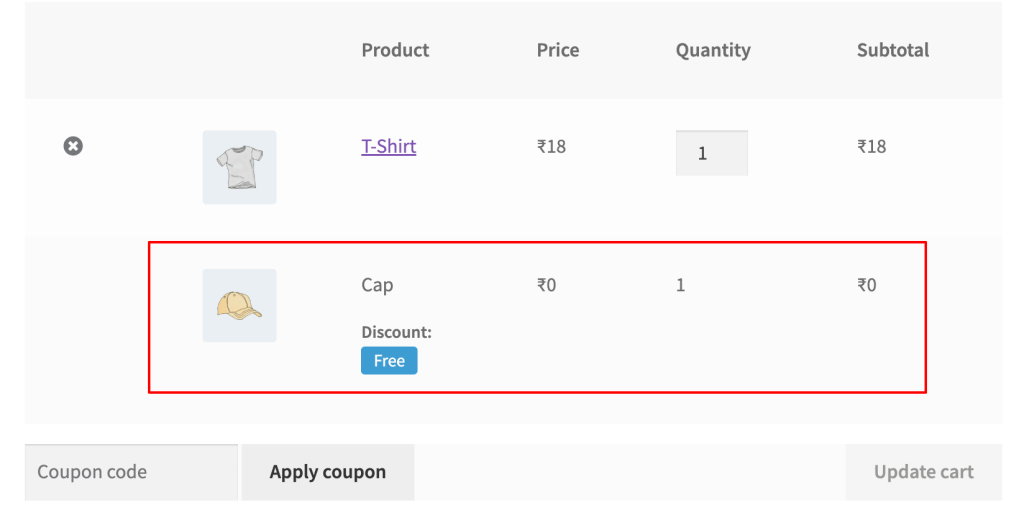
Watch out for: In Buy X Get Y, the free product doesn’t auto-appear in the cart. The customer must add it themselves; the plugin applies the discount at checkout. Communicate the deal clearly on the product page — use the “discount bar” feature to display the offer.
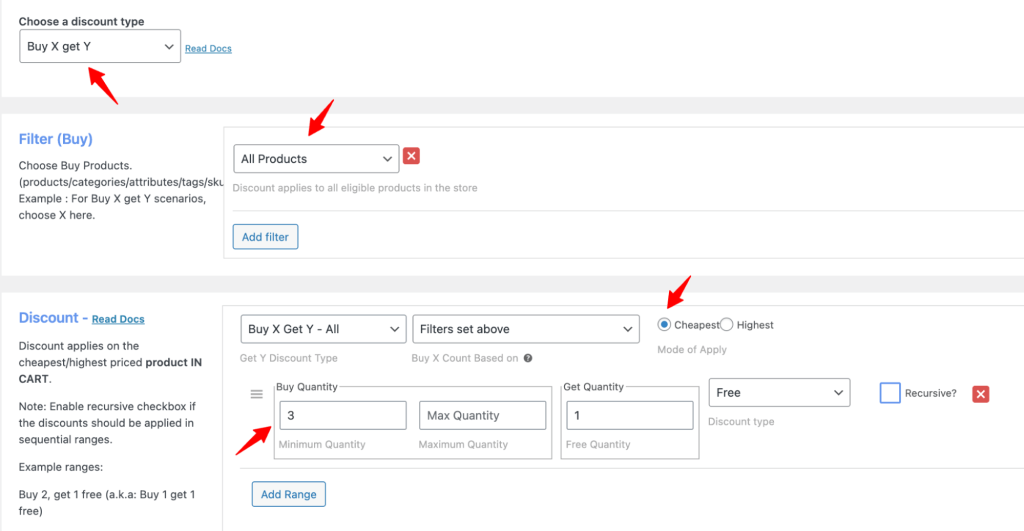
3. “Buy 2 Get 1 Free” Rule
What you’re doing: Building a higher-AOV BOGO where the customer buys 3 items but only pays for 2 — the cheapest item becomes free.
Click “Add New Rule.” Name it “Buy 2 Get 1 Free – Storewide.”
Discount Type: Select “Buy X Get Y.”
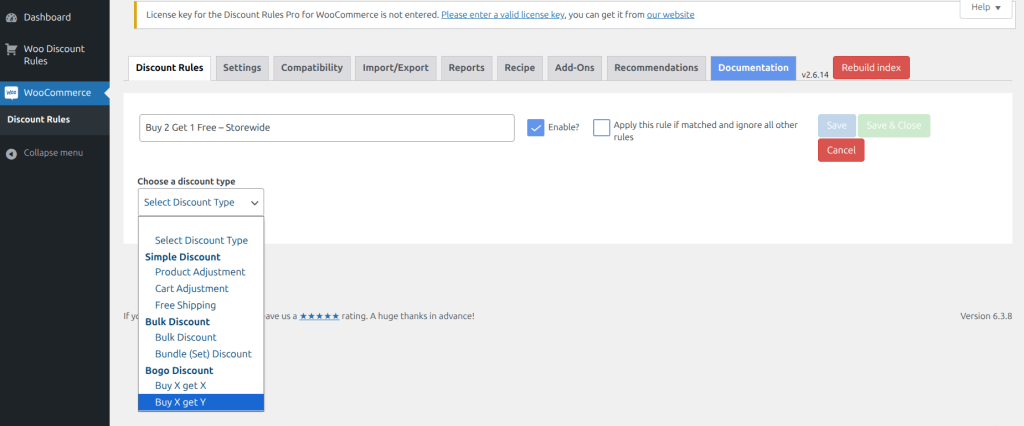
Filters section: For a storewide deal, select “All Products” from the dropdown. If you want to restrict it to one category (like T-shirts only), select “Categories” and choose the category.
Discount/Get Y section:
- Y Discount Type: Select “Buy X Get Y – All.” This makes the cheapest (or most expensive) item in the entire cart the free item — the customer doesn’t need to pick a specific product.
- Count quantities as: Select “Filter set above”
- Mode of Apply: Choose “Cheapest” — the least expensive item in the cart becomes free. (Select “Highest” if you want to surprise customers with the most expensive item free — a bold move, but effective for flash sales.)
- Minimum quantity: Set to 2 (customer must buy at least 2 items to trigger the deal)
- Maximum quantity: Leave blank or set to 2 (deal triggers once per 2 items purchased)
- Free quantity: Set to 1 (customer gets 1 free item)
- Discount type: Select “Free”
- Recursive:Enable this checkbox. This is important for Buy 2 Get 1 Free — with Recursive ON, the deal stacks: buy 4 get 2 free, buy 6 get 3 free. If you only want the deal to trigger once (buy 2 get 1 free, but buying 4 still gets only 1 free), leave Recursive OFF.
Click “Save.”
Rule Page:
Cart Page:
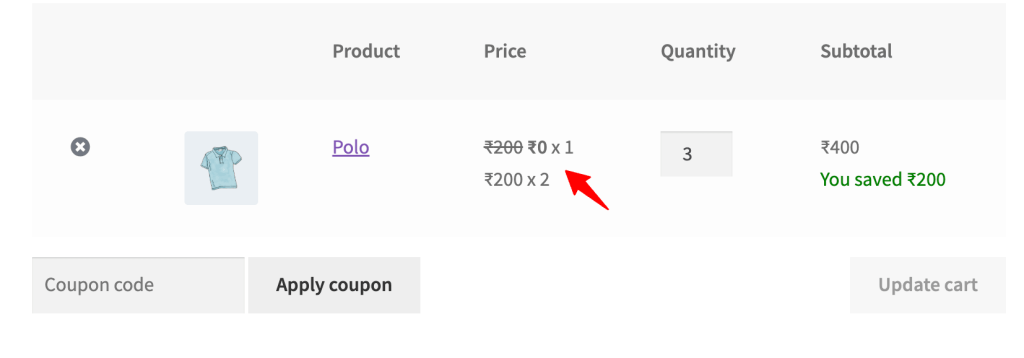
Alt Text: Cart Page output of Buy 2 Get 1 Free
Watch out for: If you enable Recursive without a maximum limit, the deal scales infinitely — buy 10 items, get 5 free. Always pair Recursive ON with a realistic expectation of your margins. For most stores, “Buy 2 Get 1 Free, max 3 free items per order” is a safe cap. You can control this by setting the maximum quantity to 6 (which allows up to 3 free items with Recursive enabled: 2+1, 4+2, 6+3).
4. Buy X Get Y at 50% Off
What you’re doing: Building a margin-friendly BOGO where the customer buys one product and gets a different product at half price — not free, but still compelling enough to drive the purchase.
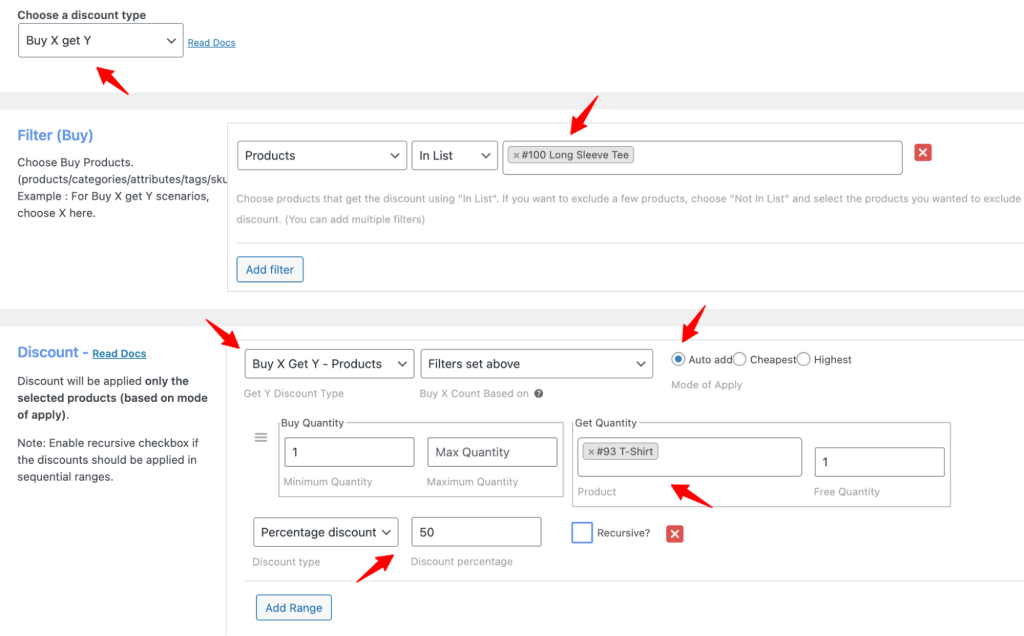
Click “Add New Rule.” Name it “BOGO Half Off – Buy long sleeve tee Get T-Shirt 50% Off.”
Discount Type: Select “Buy X Get Y.”
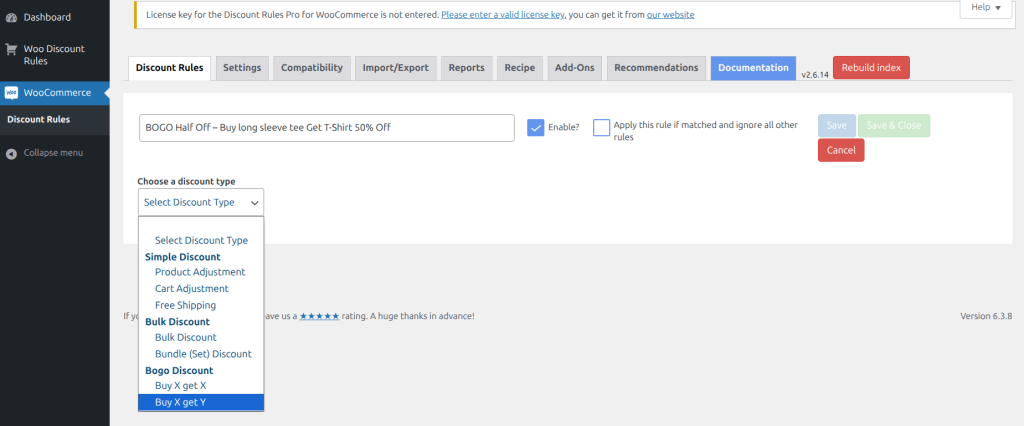
Filters section (the “Buy” side): Select “Products” from the dropdown. Search for and select “Long Sleeve Tee.”
Discount/Get Y section (the “Get” side):
- Y Discount Type: Select “Buy X Get Y – Products.” Search for and select “T-Shirt.”
- Count quantities as: Select “Filter set above” (counts only the Jacket, not other cart items)
- Minimum quantity: Set to 1 (customer must buy at least 1 Long Sleeve Tee)
- Maximum quantity: Set to 1
- Get Quantity product: Select “T-Shirt”
- Free quantity: Set to 1 (customer gets the discount on T-Shirt)
- Discount type: This is the key difference — instead of selecting “Free,” select “Percentage Discount” and enter 50 in the value field. This applies a 50% discount to the Scarf instead of making it free.
- Mode of Apply: Choose “Auto add” to add the discounted Scarf to the cart automatically. Or choose “Cheapest” if you want the customer to add it themselves.
- Recursive: Leave unchecked for a one-time deal. Enable it if you want buy 2 Long Sleeve Tee get 2 T-Shirt at 50% off.
Click “Save.”
Rule Page:
Cart Page:
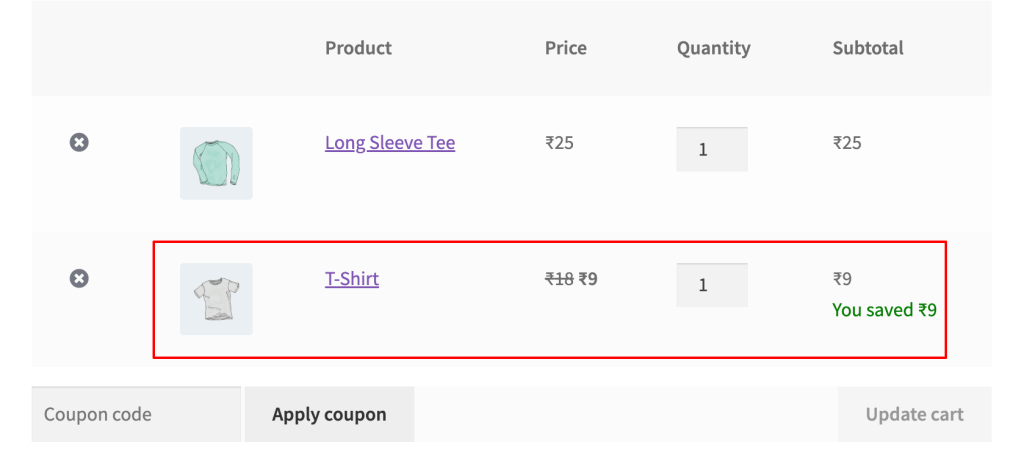
Watch out for: The only difference between this setup and a “Buy X Get Y Free” deal is the Discount Type field — you select “Percentage Discount” and enter 50 instead of selecting “Free.” Everything else stays the same.
You can also use “Fixed Discount” here instead of percentage — for example, “$10 off the Scarf” rather than “50% off.” Fixed discounts give you tighter margin control when products have very different price points.
5. Create a Category-Based BOGO Rule
What you’re doing: Building a BOGO deal where buying from one category triggers a free or discounted item from another category — ideal for stores with large catalogs.
Example: Buy any product from the “Clothing” category, get any product from the “Accessories” category free.
Click “Add New Rule.” Name it “BOGO Category – Buy Shirt Get Accessory Free.”
Discount Type: Select “Buy X Get Y.”
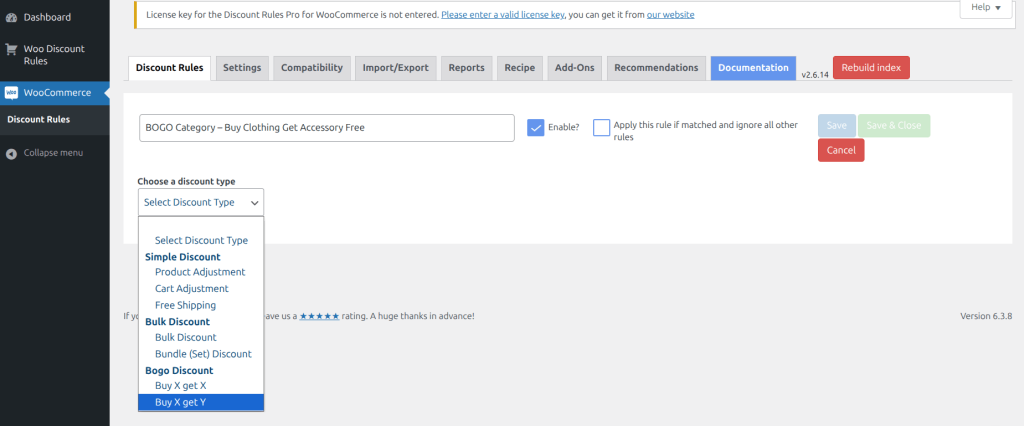
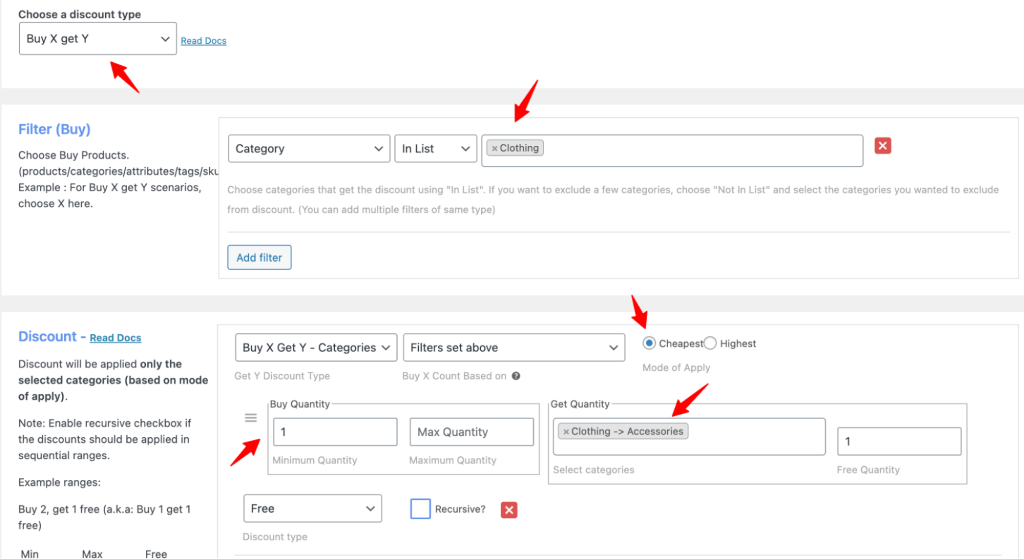
Filters section (the “Buy” side): Instead of selecting individual products, select “Categories” from the dropdown. Search for and select “Clothing.” Any product in this category will now trigger the deal.
Discount/Get Y section (the “Get” side):
- Y Discount Type: Select “Buy X Get Y – Categories.” Search for and select “Accessories.” Any product from this category can be the free item.
- Count quantities as: Select “Filter set above”
- Mode of Apply: Choose “Cheapest” — the cheapest Accessory the customer adds becomes free. This protects you from giving away the most expensive item in the category. (You can also choose “Auto add” if you want a specific accessory added automatically, but for category-based deals, “Cheapest” gives the customer freedom to choose.)
- Minimum quantity: Set to 1 (buy at least 1Clothing)
- Maximum quantity: Set to 1
- Free quantity: Set to 1
- Discount type: Select “Free” for a full BOGO.
- Recursive: Leave unchecked unless you want the deal to repeat (buy 2 clothing, get 2 accessories free).
Click “Save.”
Cart Page:
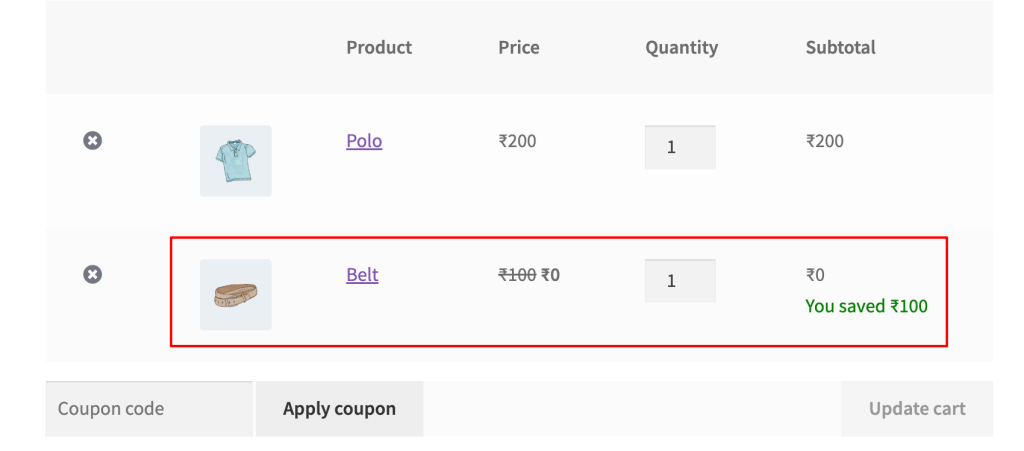
Watch out for: Category-based BOGOs are powerful but risky if your categories have wildly different price points. If your “Accessories” category includes both $5 keychains and $80 leather wallets, the customer could add a $5 keychain (the cheapest) and get it free — which is great for you.
But if you set Mode of Apply to “Highest” or “Auto add” with a specific expensive product, you could give away an $80 wallet. Always use “Cheapest” mode for category-based deals unless you’ve verified the margin math on every product in that category.
WPLoyalty even has a Discount Rule Integration add-on that connects the two plugins directly, so customers in higher loyalty levels automatically receive level-based discounts without extra campaign setup.
Save, Test, and Go Live
What you’re doing: Confirming the BOGO rule works correctly before promoting it.
After saving, your rule appears in the Discount Rules dashboard as “Enabled.” Now test it:
- Open your store in an incognito browser window (so you’re not logged in as admin)
- Add the trigger product to your cart
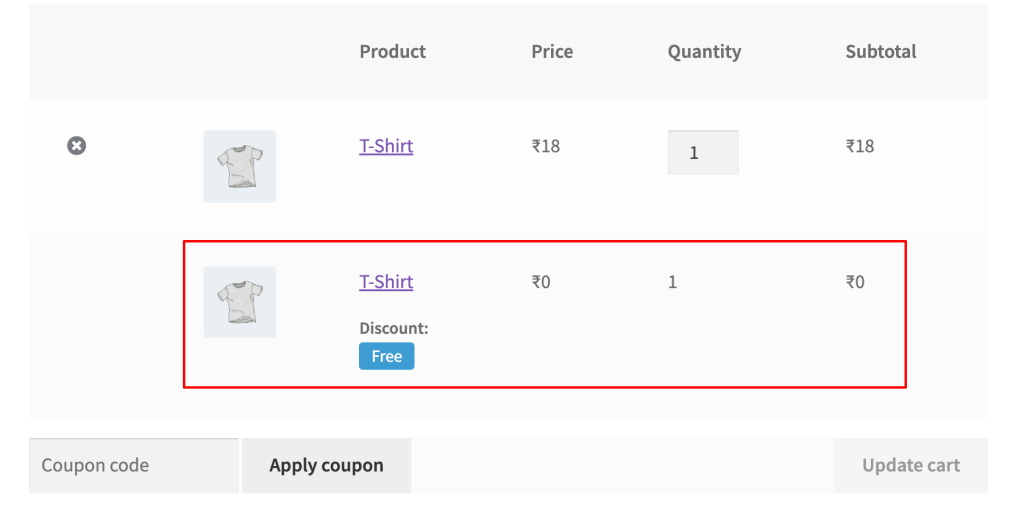
- If it’s a Buy X Get X deal, the free item should appear as a separate line item in the cart, marked with a “Free” label and $0.00 price
- If it’s a Buy X Get Y deal, add the “Get” product manually (Conditioner), then verify the discount applies
- Proceed to checkout — confirm the totals are correct and the payment form still works
- Complete a test purchase and check the order in WooCommerce → Orders
After confirming the BOGO works, connect it to your loyalty program. With WPLoyalty, customers earn loyalty points even on BOGO purchases. The customer gets a free product AND accumulates points toward future rewards. That’s how a single promotion feeds long-term retention instead of just spiking one week’s numbers.
Also Read: Set Up a Free Product in Your WooCommerce Rewards Program
Verify It’s Working
Run these checks before promoting the deal:
- Add the trigger product — the free item should appear automatically for Buy X Get X. For Buy X Get Y, add both products and confirm the discount applies to the “Y” product.
- Test the recursive limit — add quantities beyond your maximum. Confirm the cap holds.
- Test on mobile — some themes display the “Free” badge differently. Confirm the customer can see the discount.
- Check the order — complete a test purchase, open WooCommerce → Orders, confirm line items and totals are correct.
Pro tip: Add a temporary coupon condition to the rule during testing. This prevents the BOGO from firing for real customers. Remove it when you’re ready to launch.
Reward your loyal customers with automatic level-based discounts — connect WPLoyalty and Discount Rules in one click.
5 Common BOGO Mistakes (And How to Avoid Them)
Mistake #1: Running BOGO on products with thin margins
A “Buy 1 Get 1 Free” on a product with 30% margin means you lose money. Product costs $16, sells for $24? A BOGO gives you $24 revenue for $32 in product cost — an $8 loss per transaction. Run the math on a spreadsheet before launching. BOGO works best on products with 50%+ gross margins.
Mistake #2: Forgetting to set an end date
I’ve seen stores run BOGO deals for three months because nobody set an expiration date. By month two, customers expected the deal as permanent pricing. Removing it generated angry support tickets. Always set start and end dates. 7-14 days is the sweet spot.
The same principle applies to loyalty points — setting point expiry windows creates urgency that drives redemption.
Mistake #3: Vague deal language on the product page
“Buy Any Qualifying Item And Receive Select Complementary Products At Reduced Pricing” — I pulled that from an actual store. No customer will parse that.
Write it like a human: “Buy 1 T-Shirt, Get a Second Free.” Display it on the product page, cart, and a banner. Discount Rules has a “discount bar” feature (Settings → General → Enable discount bar) that shows the offer below the Add to Cart button. Our guide on reducing cart abandonment covers why checkout clarity impacts conversions.
Mistake #4: Using BOGO as a standalone tactic with no retention behind it
A BOGO deal gets a customer to buy once. Without a follow-up system, that customer has no reason to come back. This is the single most common mistake I see: stores run a BOGO, celebrate the spike in orders, and then watch revenue drop back to baseline the following week.
The fix: pair every BOGO with a loyalty points program. With WPLoyalty, the BOGO customer earns points on their purchase. Those points accumulate toward a future discount. The BOGO was the hook — the loyalty program is the line.
Mistake #5: Enabling Recursive without a cap
Recursive means the deal repeats with every qualifying quantity: buy 2 get 2 free, buy 5 get 5 free. Without a maximum limit, deal-savvy shoppers will stack the offer to absurd levels.
Always pair Recursive ON with a maximum free quantity. “Buy 1 Get 1 Free, max 3 free items per order” is a safe default for most stores.
Related Read: Why Customers Ghost You After Buying Once
Advanced Tips for Experienced Store Owners
Tip 1: Use Buy X Get Y to introduce new products without a marketing budget. Make your bestseller the “Buy” and a new product the “Get.” The bestseller drives the purchase. The new product gets sampled for free. Skincare brands do this constantly — “Buy our #1 moisturizer, get the new vitamin C serum free.” The serum gets hundreds of product trials without a single ad dollar. If you’re looking for more ways to increase eCommerce sales, this is one of the most cost-effective.
Tip 2: Run exclusive BOGO deals for loyalty program members only. Use the “User Roles” condition to restrict BOGO deals to specific customer groups. With WPLoyalty’s tiered program, Gold members get exclusive BOGOs that Silver and Bronze members can’t access. This makes tier advancement feel real — not just a badge, but actual money saved.
Tip 3: Combine BOGO with a minimum cart subtotal. Set the condition: “Cart subtotal must be $75 or more.” The customer needs to build a larger cart before the BOGO kicks in. This protects your AOV from shrinking while still offering a compelling deal. I’ve found that $50-75 minimum thresholds work for most mid-range WooCommerce stores.
Tip 4: Schedule seasonal BOGOs in advance using the Date & Time condition. Plan your Black Friday BOGO, Valentine’s Day cross-sell, and back-to-school deals weeks ahead. Set future start dates and auto-expiry. No last-minute scrambling, no forgetting to turn deals off. For even more personalized timing, pair scheduled BOGOs with birthday rewards — a customer-specific promotion that feels personal rather than mass-market.
Tip 5: Test “Buy 1 Get 1 Free” vs “Buy 1 Get 1 at 50% Off” on the same product. Run each version for one week. Compare AOV, conversion rate, and margin per order in WooCommerce Analytics. In testing across three stores, the “50% off second item” version produced nearly identical conversion rates to “Free” — with 25-30% better margins. The word “Free” is powerful, but “50% Off” is often the smarter business move.
Bonus Tip: Condition setup pairs naturally with WPLoyalty’s VIP tier system. If you have Gold and Silver loyalty tiers, you can use the “User Roles” condition to run exclusive BOGO deals only for top-tier customers — making VIP status feel genuinely valuable.
Real-World Examples
Example 1: How a pet food store moved 200 units of slow inventory in 3 weeks
A WooCommerce store selling organic pet treats had 200 units of a salmon-flavored treat sitting on shelves. Regular discounting (20% off) barely moved 15 units in a month.
They created a Buy X Get Y rule: “Buy any 2 chicken treats (their bestseller), get 1 salmon treat free.” The chicken treats were their highest-margin product (62% gross margin), so giving away a salmon treat per order still left healthy profit on the chicken sales.
Result: all 200 salmon units sold in 21 days. Chicken treat orders increased 22% during the promotion. And the free salmon samples created enough repeat buyers that the product moved into their top-10 sellers the following quarter — without any further promotion.
Example 2: Target’s product-pairing BOGO strategy
Target regularly pairs high-margin anchor products with low-cost “Get” items that introduce customers to an ecosystem — “Buy an iPad, get free Apple Music.” The free item barely costs Target anything, but it hooks the customer into a recurring service.
WooCommerce equivalent: “Buy our premium coffee maker, get a free bag of our subscription coffee.” The free coffee bag introduces the customer to your subscription product. If even 20% subscribe, that single BOGO generates months of recurring revenue. Connect this to WPLoyalty’s referral rewards and those subscribers bring in new customers organically.
Read the full Starbucks loyalty program case study to see how major brands layer promotions on top of loyalty mechanics.
What to Do Next
You have a working BOGO coupon. It’ll drive orders this week. But a BOGO without a retention system behind it produces a spike and a return to baseline.
Loyalty programs boost retention 15–35% when paired with promotional strategies (Marketing LTB, 2025). WooCommerce stores running loyalty programs see 2.7x higher customer retention (Blacksmith Agency, 2026).
With WPLoyalty, every BOGO customer earns loyalty points on their purchase. Those points convert into discounts, free products, or free shipping on their next order. The BOGO brought them in. The points system gives them a reason to come back without another BOGO.
Install WPLoyalty free and set up your first loyalty campaign — award points for every purchase, review, or referral. It takes under 10 minutes. Pair it with your new BOGO deal and watch a one-time promotion feed long-term retention.
📚 Keep Reading:
Go deeper on discounts and promotions:
Related retention strategies:
Case studies and inspiration:
Frequently Asked Questions
Not a real one. WooCommerce’s built-in coupons handle percentage, fixed cart, and fixed product discounts. There’s no conditional “if customer buys X, then discount Y” logic. You need a plugin like Discount Rules for WooCommerce to add BOGO functionality.
Discount Rules for WooCommerce – PRO by Flycart. 100,000+ installs, 1,237+ five-star reviews, $85/year. Supports Buy X Get X, Buy X Get Y, category-based BOGOs, recursive deals, conditions, and auto-apply. Advanced Coupons ($99/year) is the other major option — good plugin, but I find Discount Rules’ filter system more flexible.
Buy X Get X = same product free (buy a T-shirt, get a T-shirt). Buy X Get Y = different product free (buy a shampoo, get a conditioner). Use X Get X for inventory clearance and stock-up incentives. Use X Get Y for cross-selling, new product introductions, and category promotions.
Yes. Use the Conditions section to restrict by user role, purchase history, logged-in status, or even specific email addresses. This pairs directly with WPLoyalty’s VIP tier system — run exclusive BOGOs for Gold members only.
Both options work. By default, Discount Rules auto-applies when cart conditions are met — no code needed. If you want to require a code (useful for email campaigns or influencer partnerships), add a “Coupon” condition in the rule and specify the code.

