


Last month, a WooCommerce store owner in a forum I follow posted something that stuck with me. She’d processed 47 refunds in December. Every single one went back to the customer’s credit card. That’s roughly $2,800 that left her store and never came back.
She asked, “Is there a way to offer store credit instead?” The top reply was blunt: “You needed this six months ago.”
I’ve configured store credit on WooCommerce stores selling everything from handmade ceramics to pet supplements. The setup takes about 15 minutes. The part nobody tells you — choosing between plugins, deciding credit amounts, setting the right expiration window, and connecting credit to a loyalty program — takes longer to think through than to implement.
This guide covers the thinking AND the clicking. By the end, you’ll have a working store credit system and a strategy for using it as a retention tool — not just a refund workaround.
What You’ll Learn
By the end of this guide, you’ll know how to:
- Set up WooCommerce store credit using plugin
- Create a sellable store credit product so customers can buy gift credits for others
- Issue credit for refunds, promotions, and win-back campaigns — and decide when each makes sense
- Avoid the 5 mistakes that make store credit backfire on customer goodwill
- Connect store credit to a loyalty points system so every credit issued feeds a bigger retention loop
What Is WooCommerce Store Credit?
Store credit is a balance tied to a specific customer that they can spend at your store. Think of it like a gift card — except you’re the one issuing it, and the money stays with your business.
WooCommerce doesn’t include this feature out of the box. What you get by default is regular coupon codes. You can hack a coupon to work as store credit — create a fixed-cart coupon for $20, restrict it to one email, and send it manually. But that breaks down fast. You’d need a new coupon for every customer, every refund, every promotion. And there’s no way to track remaining balances across multiple uses.
That’s why most store owners end up using a dedicated plugin. The plugin handles the balance tracking, the customer-facing “My Account” display, partial redemptions across orders, and the email notifications.
According to GE Capital’s retail research, customers who shop with store-branded credit visit 29% more often than those who don’t. And a National Retail Federation study found that stores offering credit-based refunds retain 20-30% more revenue in-house compared to cash-back refunds.
If you’re new to the broader retention landscape, our guide on what loyalty programs are and their benefits covers why keeping existing customers matters more than chasing new ones.
Want to set up a loyalty program alongside store credit? WPLoyalty lets you do both in under 10 minutes.
Why Store Credit Matters More Than Most Store Owners Realize
Here are the numbers that convinced me to set this up on my first WooCommerce store.
- A 5% increase in customer retention boosts profits 25–95% — that range is wide, but even the low end is significant (Bain & Company / Harvard Business School)
- Repeat customers account for 48% of all eCommerce transactions (Opensend, 2026)
- 75% of consumers say they’re more likely to buy from a brand with a loyalty or credit program (WiserReview, 2026)
- The average eCommerce store loses 70-77% of its customers annually (Envive, 2026). Store credit is one tool to fight that number.
- WooCommerce stores using loyalty programs see 2.7x higher retention (Blacksmith Agency, 2026)
But the real insight isn’t in aggregate stats. It’s in how store credit changes the refund conversation.
When a customer asks for a refund, you have two outcomes: money leaves your business (cash refund) or money stays in your business (store credit). If even 30% of your refund customers choose credit — and the data shows they will, especially if you sweeten it — that’s revenue you’ve recovered without a single ad dollar.
One ceramics shop I worked with offered “$5 bonus credit” on every refund taken as store credit instead of cash. Their credit acceptance rate hit 58% within three months. More importantly, credit recipients spent an average of $52 on their next order — against $35 in average credit issued.
Related Read: Customer Retention Strategies: How to Keep Customers Coming Back
What You’ll Need Before Starting
Make sure you have these in place:
- WooCommerce 8.0+ installed and active
- Coupons enabled — go to WooCommerce → Settings → General and confirm “Enable coupons” is checked. Store credit plugins build on the coupon system, so if this toggle is off, nothing works. (I spent 20 minutes troubleshooting a blank screen on my first setup because this was off.)
- A payment gateway connected — Stripe or PayPal at minimum. If you haven’t set this up, see our WooCommerce payment gateways guide.
- One of these plugins:
- WooCommerce Store Credit (official extension, $99/year) — straightforward, does one thing well
- Smart Coupons by StoreApps ($129/year, 25,000+ customers) — all-in-one tool covering store credit + gift cards + BOGO + bulk generation
- Basic WooCommerce familiarity — you should know how to create products and process orders. If you’re brand new, our how to create a loyalty program in WooCommerce guide gives foundational context.
⏱️ Time estimate: 15-20 minutes to complete this guide.
Two Plugin Options: Which One Fits Your Store?
Before we get into the step-by-step, you need to pick a plugin. Both work. The right choice depends on what else you need.
WooCommerce Store Credit ($99/year) is the official extension. It handles store credit and nothing else. You create credits, send them via email, customers redeem them at checkout. Clean, focused, no feature bloat.
Smart Coupons by StoreApps ($129/year) does store credit PLUS gift cards, BOGO deals, URL coupons, bulk generation, and scheduled delivery. If you want customers to be able to purchase store credit as a gift product — or if you plan to run Black Friday credit campaigns — Smart Coupons handles all of it in one plugin.
WebToffee also offers a “Smart Coupons” plugin (confusingly similar name) starting at $89/year, but it requires separate paid add-ons for features like store credit and bulk generation. Total cost to match StoreApps’ feature set: $270+.
My recommendation: If you only need refund-to-credit and promotional credits, start with the official Store Credit plugin at $99/year. If you want sellable gift credits, scheduled delivery, or bulk campaigns, go with Smart Coupons at $129/year.
How to Create and Sell Gift Cards & Store Credit (Step-by-Step Guide)
Step 1: Install and Activate Your Plugin
What you’re doing: Adding store credit functionality to WooCommerce.
Go to WordPress → Plugins → Add New → Upload Plugin. Upload the .zip file you downloaded from StoreApps.org (for Smart Coupons). Click Install Now, then Activate.
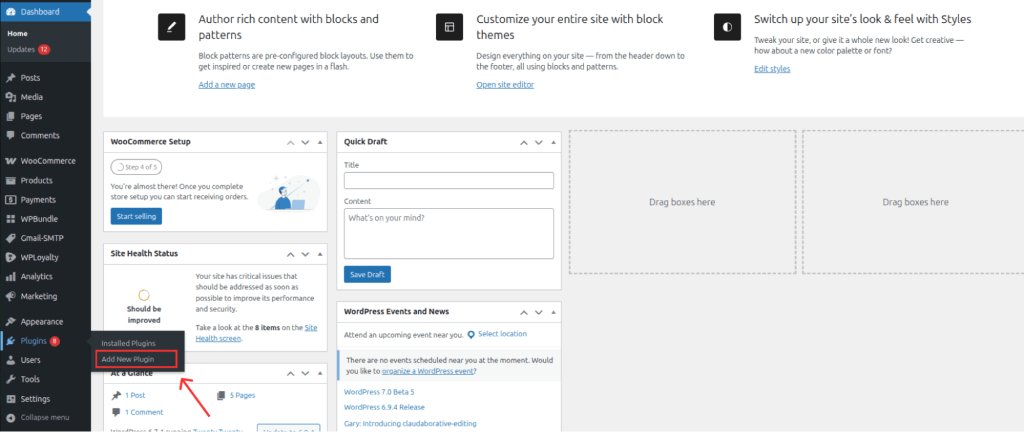
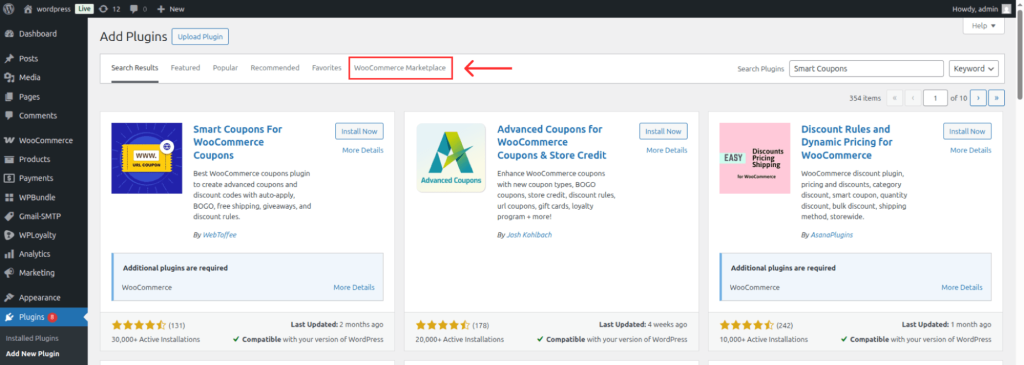
Then Click → WooCommerce MarketPlace
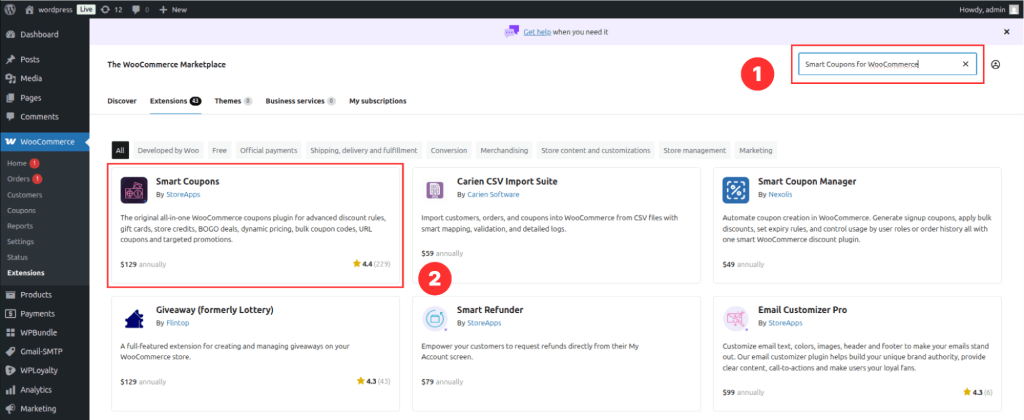
Search “Smart Coupons for WooCommerce” select the first one. Click Install Now, then Activate the plugin.
Step 2: Create a new coupon
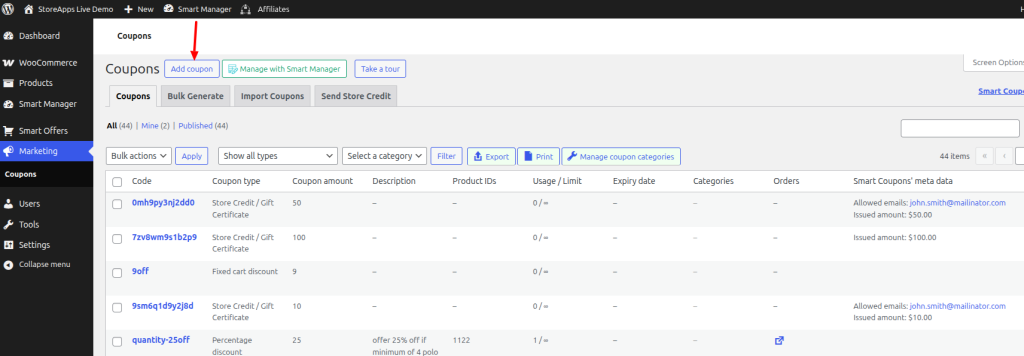
In Marketing Section Click Add Coupon
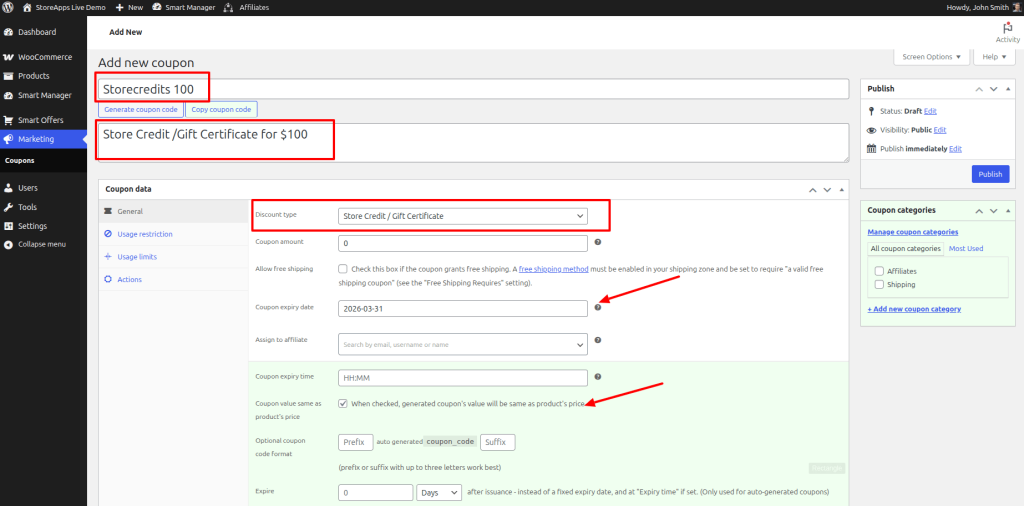
Now Create the coupon. Add Coupon Name, Description. In General Tab, choose discount type > Store Credit/Gift Certificate.
Then, Choose Coupon expiry date. Enable the “coupon value same as product’s price”. Then publish the coupon.
Now gift card coupons are sold as a digital product.
Step 3: Create a simple product
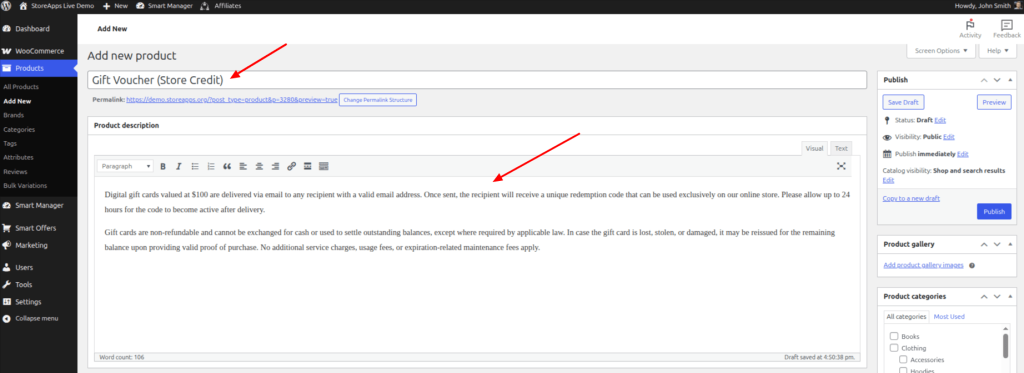
Then we will create one simple product. Add product title, body of the content.
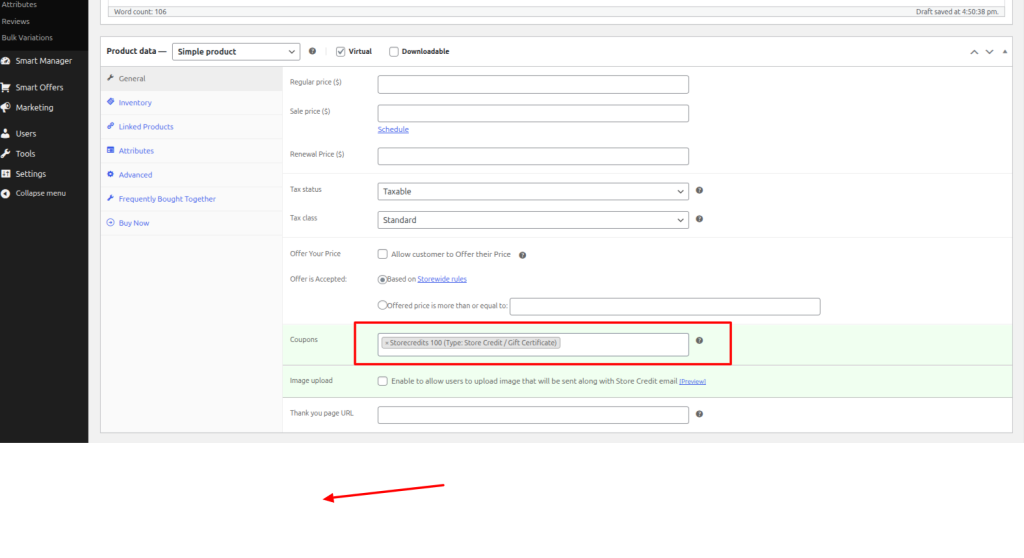
Search and select the coupon we recently created. If needed add the product image. Then publish the product.
Now your gift card coupon is ready. It’s look like this
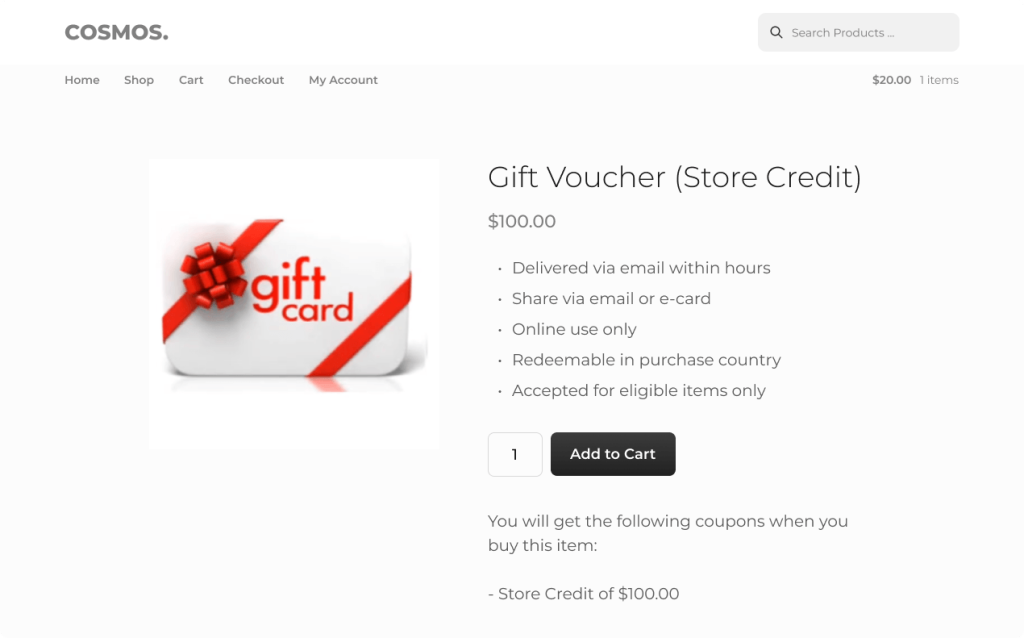
Step 3: Send gift card email to friends and family
If you click add to cart it will be sent to your billing email address you entered at checkout. However you can send this giftcard to someone else and also schedule during checkout.
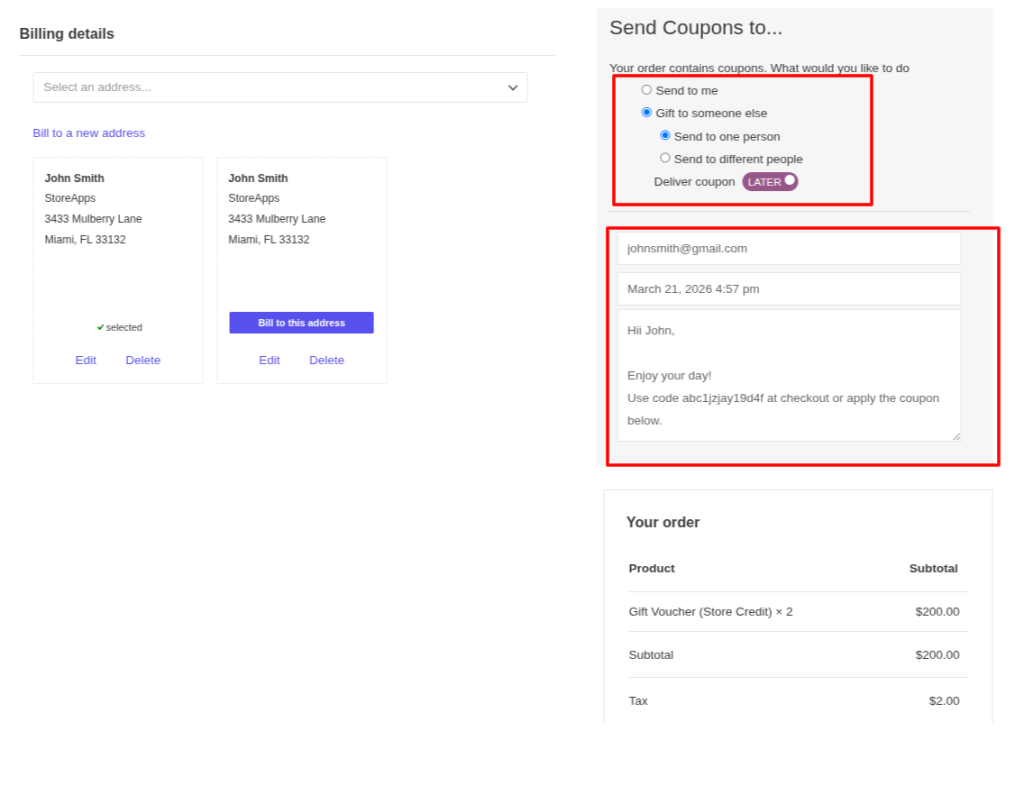
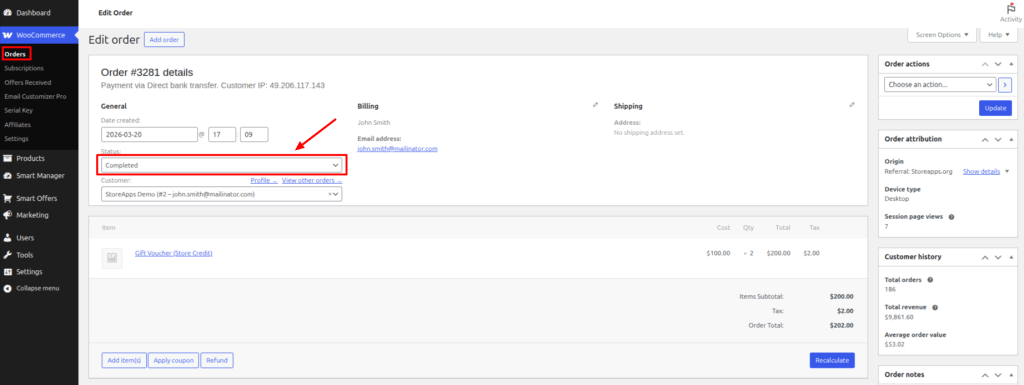
Next Place the order and Go to the WooCommerce >> orders
Change the order status “Completed”
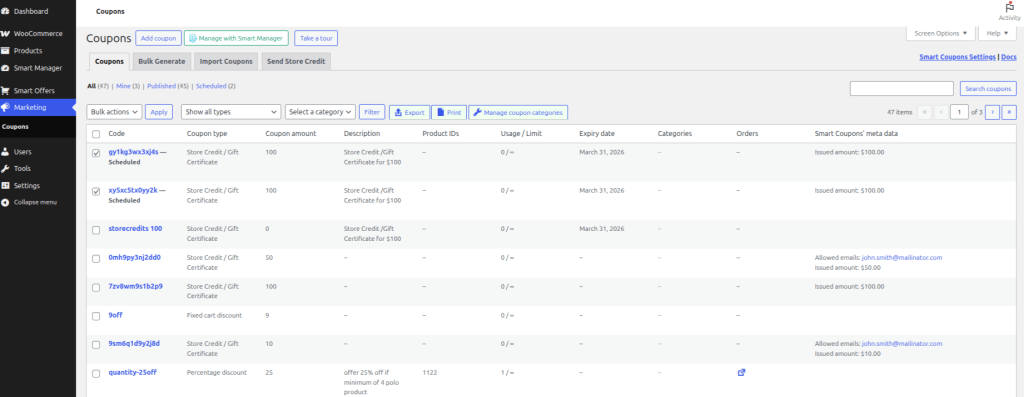
You Can Visit Coupon Details, Marketing >> Coupon
Now you can see (Code, Coupon type, Coupon amount, Description, Product IDs etc..)
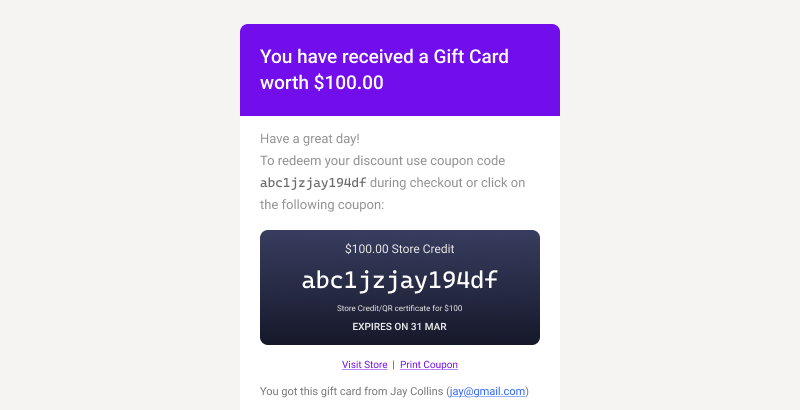
The gift card will look like this in email
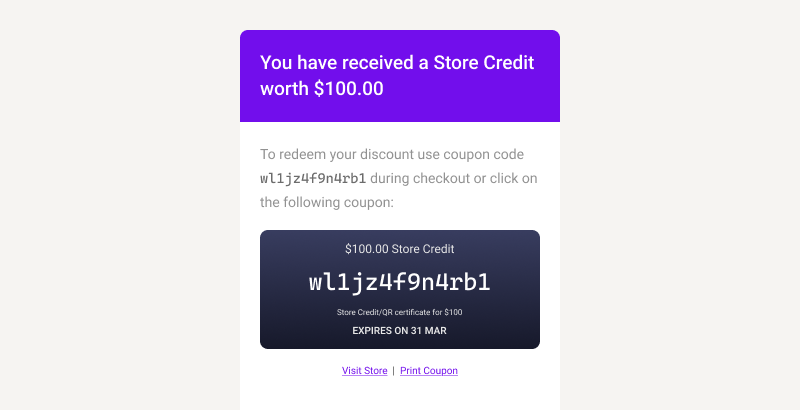
Gift Card coupon look like this for someone else mail
Also Read: How to Reduce Cart Abandonment
Verify It’s Working
Run this 3-minute test before using store credit with real customers:
- Create a $5 test credit for your own email
- Open your store in an incognito browser, log in as that customer
- Add a product to your cart and apply the credit code on the cart or checkout page
- Complete the purchase and confirm the credit applies correctly, the order total adjusts, and the remaining balance updates
Pro tip: Test with an item that costs MORE than the credit too. Confirm the customer can pay the difference with their normal payment method. If the checkout doesn’t show a payment form when credit only covers part of the total, check your theme’s checkout template — some themes hide the payment section when any coupon is applied.
Related Read: Customer Retention Metrics Every Store Should Track
5 Mistakes That Make Store Credit Backfire
Mistake #1: Offering insultingly small credit on returns
A customer returns a $60 item and you offer $3 in store credit. That’s not a retention tool — that’s an insult. If you’re issuing credit as a refund alternative, the amount should match the refund value. Better yet, add a small bonus ($32 credit on a $30 return). That $2 costs you nothing and creates genuine goodwill.
Mistake #2: No expiration date on credits
Open-ended credit sits unused forever. It becomes a liability on your books and a forgotten balance the customer never thinks about. Set expiry at 90 days for refund credits and 30 days for promotional credits. The deadline creates urgency without feeling punitive. Our guide on reducing eCommerce churn explains why time-bound incentives consistently outperform open-ended ones.
Mistake #3: Hiding the credit balance from customers
If customers can’t see their credit on the My Account page or don’t know where to enter the code at checkout, they won’t use it. Redemption rate drops. The whole system becomes pointless. Make the balance visible on the My Account page, include the code and balance in order confirmation emails, and ensure your theme’s checkout page shows the coupon field prominently. Some themes bury it — optimizing your checkout can fix this.
Mistake #4: Forcing credit when customers want cash
Fastest way to a 1-star review. Always frame it as a choice: “Would you prefer a full refund to your card, or $35 in store credit with a $5 bonus?” Some customers will happily take credit. The ones who don’t? Let them go gracefully. Forced credit policies create resentment, not loyalty.
Mistake #5: Treating credit as a standalone feature instead of part of a system
Store credit alone is a one-off tool. It handles a single transaction. But when you connect it to a loyalty points program, something compounds. Customer earns points on a purchase → converts points to credit → uses credit on next order → earns more points. That cycle is what turns occasional buyers into regulars. Without that connection, credit is just a fancier coupon.
Related Read: Why Customers Ghost You After Buying Once.
Advanced Tips for Experienced Store Owners
Tip 1: Use store credit as a loss-leader for high-margin products. Issue $10 credit restricted to products with 60%+ margins. The customer feels rewarded. You profit on every redemption. Set the restriction in the coupon’s “Usage Restriction” tab under product categories.
Tip 2: Send expiry reminders at 7 days AND 2 days before the deadline. The 7-day email creates awareness. The 2-day email creates urgency. Together, they produce the highest redemption rates of any email type you’ll send. Store owners I’ve worked with report 2-3x higher credit use rates with this two-touch approach.
Tip 3: Stack credit with VIP loyalty tiers. Gold-tier members get 15% more store credit on refunds than regular customers. Silver gets 10% more. This makes VIP tiers feel tangibly different — not just a badge, but real money.
Tip 4: Offer credit as a signup incentive instead of a percentage discount. “Get $10 store credit when you create an account” outperforms “Get 10% off your first order” in most stores. Credit feels like real money sitting in your pocket. A percentage feels like a math problem you’ll think about later. Learn more about why rewarding your first customer early matters so much.
Tip 5: Use credit for review incentives. “Leave a product review, get $5 store credit” generates more reviews than vague point rewards. Credit is immediate, tangible, and easy to understand. Pair this with WPLoyalty’s review rewards campaign for a double incentive.
Real-World Examples
Example 1: A small ceramics shop’s credit-plus-bonus strategy
A WooCommerce store selling handmade mugs and bowls switched from cash refunds to offering store credit with a $5 bonus on every return processed as credit. In three months, 58% of refund customers chose credit. Those customers came back and spent an average of $52 per order against $35 in credit issued. Net new revenue per returning customer: $17. No ad spend. No discount erosion. Just credit and a $5 sweetener.
Example 2: How Starbucks turned store credit into a $1.6 billion advantage
Starbucks Rewards members load funds — store credit, essentially — into their app. Once money is loaded, it can only be spent at Starbucks. At one point, the company reported holding over $1.6 billion in stored value on customer cards. That’s money customers had already given Starbucks but hadn’t spent yet. Interest-free lending, funded by loyalty.
The WooCommerce version: customers earn loyalty points → convert points to store credit → credit can only be spent at your store. WPLoyalty makes this loop possible. Read our full Starbucks loyalty program case study to see the mechanics.
Increase your ROI upto 20X with WPLoyalty’s customized loyalty campaigns and reward your loyal customers this Valentine’s day.
What to Do Next
You now have a working store credit system. But store credit by itself is a single-use tactic. The real compounding starts when you connect it to a loyalty program that rewards customers for every interaction.
Loyalty programs boost retention 15–35% when paired with store credit and incentives (Marketing LTB, 2025). WooCommerce stores running loyalty programs see 2.7x higher customer retention (Blacksmith Agency, 2026).
With WPLoyalty, you set up one system: customers earn points for purchases, reviews, referrals, and birthdays. Those points convert into store credit, discounts, free products, or free shipping. The store credit you just configured becomes one piece of a self-reinforcing retention engine.
Install WPLoyalty free and create your first loyalty campaign. Award points for every purchase, review, or referral. Customers convert points into store credit automatically. Setup takes under 10 minutes.
Keep Reading:
Go deeper on store credit and loyalty:
Related retention strategies:
- How to Improve Customer Retention
- 7 Effective Rewards to Increase Customer Engagement
- How to Increase WooCommerce Customer Loyalty
Case studies and inspiration:
Frequently Asked Questions
You can hack it with WooCommerce’s built-in coupons — create a fixed-cart coupon, restrict it to one email, and send it manually. But there’s no balance tracking across multiple uses, no customer-facing balance display, and no automated emails. For anything beyond a one-off, you need a dedicated plugin.
The official Store Credit plugin costs $99/year. Smart Coupons by StoreApps costs $129/year and includes gift cards, BOGO, and bulk generation. WebToffee’s base plugin starts at $89/year but requires paid add-ons ($270+ total) to match Smart Coupons’ features. There’s also a free Store Credit plugin on WordPress.org with basic functionality.
Store credit is usually issued by you (the owner) as a refund, reward, or promotion. Gift cards are purchased by customers for others. Functionally, both work the same at checkout — they’re redeemable balances applied to orders. Smart Coupons handles both in one plugin.
Yes — and this is the most powerful use case. With WPLoyalty, customers earn points for purchases, reviews, and referrals. Those points convert into store credit or discount coupons. This creates a retention loop: buy → earn → convert → buy again.
The code becomes invalid at checkout. The customer isn’t charged. The unused balance disappears. Send reminder emails at 7 days and 2 days before expiry — these consistently have the highest open rates and conversion rates of any email type.

